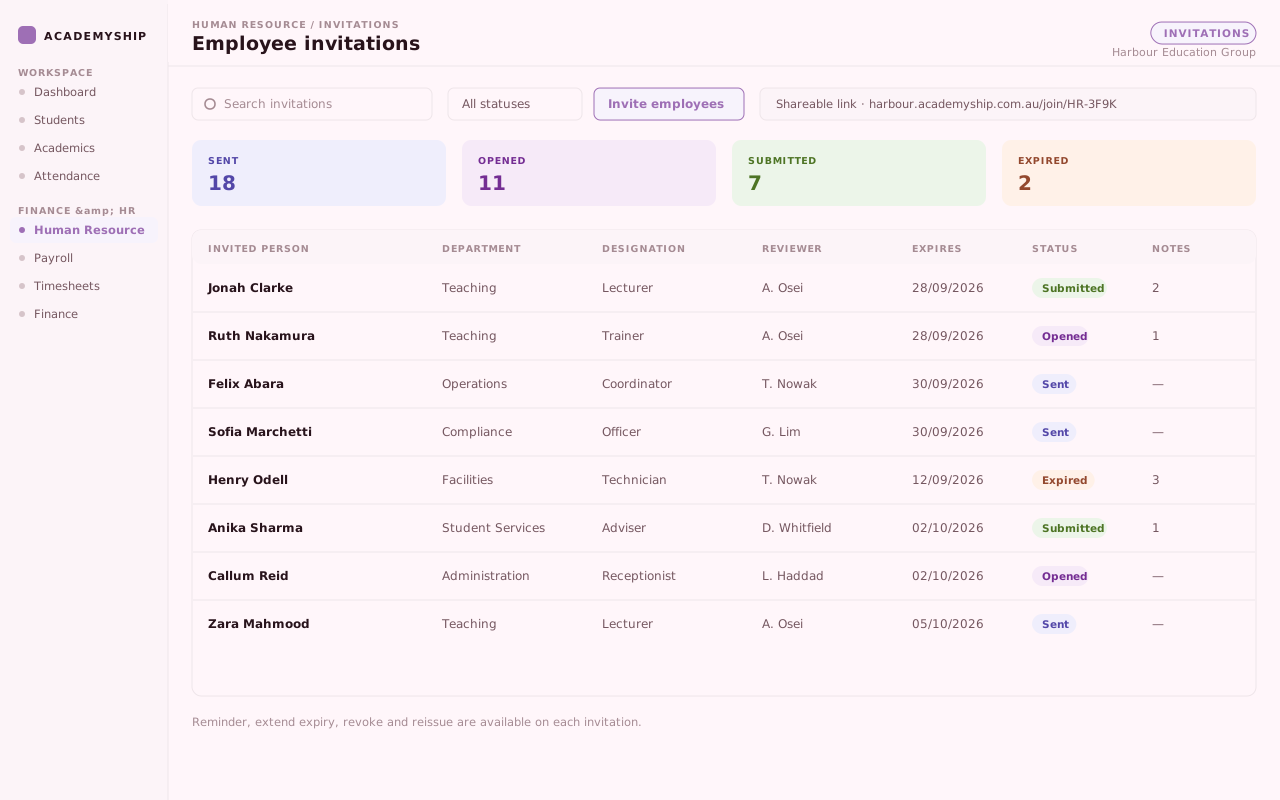
Invite one person or a batch, then see who has replied.
HR for education teams
From First Invite, Keep Every Profile, Workday and Decision Connected.
Bring onboarding, staff profiles, leave, rosters and payroll-ready detail into one hub, so schools, RTOs and growing teams stop entering the same information twice.
Invite up to 100 employees at once
Employment, organisation, documents and history together.
Balances, requests and holidays scoped to who they affect.
Named shifts, rosters, rotations and change requests.
Clock-ins, summaries and exports beside the profile.
Classification, bank and tax detail ready for the pay run.
Why HR gets harder
People Operations Break When the Details Drift Apart.
Staff information is never one fact. It is an agreement, an entitlement, a roster and a document with a date on it — each settling somewhere different.
Academyship keeps the people information and the rules in one place.
- One staff profile the rest of your workflows build on
- Entitlements that carry forward, renew and recalculate to your rules
- Rosters, rotations and changes held as real requests
- Documents, work rights and key dates kept on the person
- Leave decisions that show who decided and when
The same person is entered more than once
A new starter is typed into one place for HR, another for the roster and a third for pay. The copies stop agreeing quickly.
Joining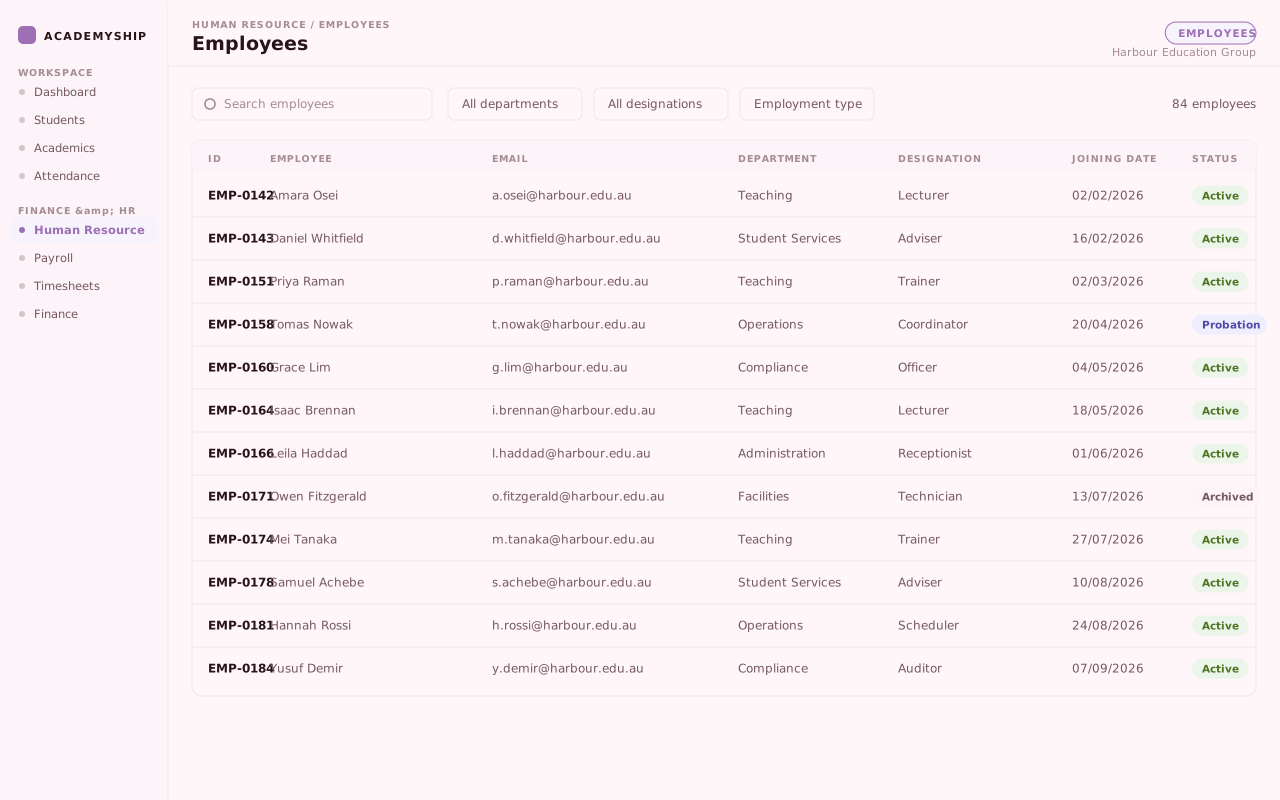
Entitlements are worked out beside the system
Balances kept on a spreadsheet drift between renewals, and nobody can show how a figure was reached.
Leave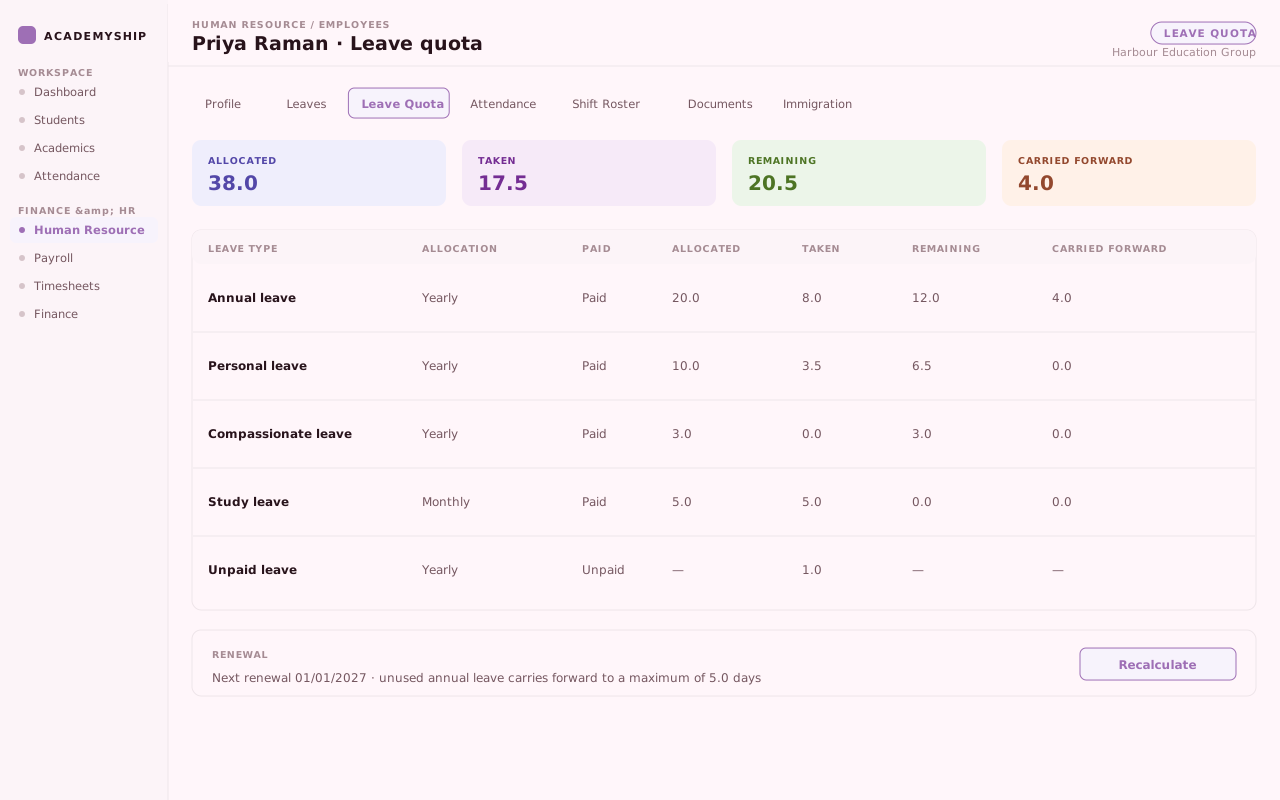
Rosters, attendance and changes disagree
A swap agreed in a message never becomes anything the system holds, so planned and worked hours disagree.
Workday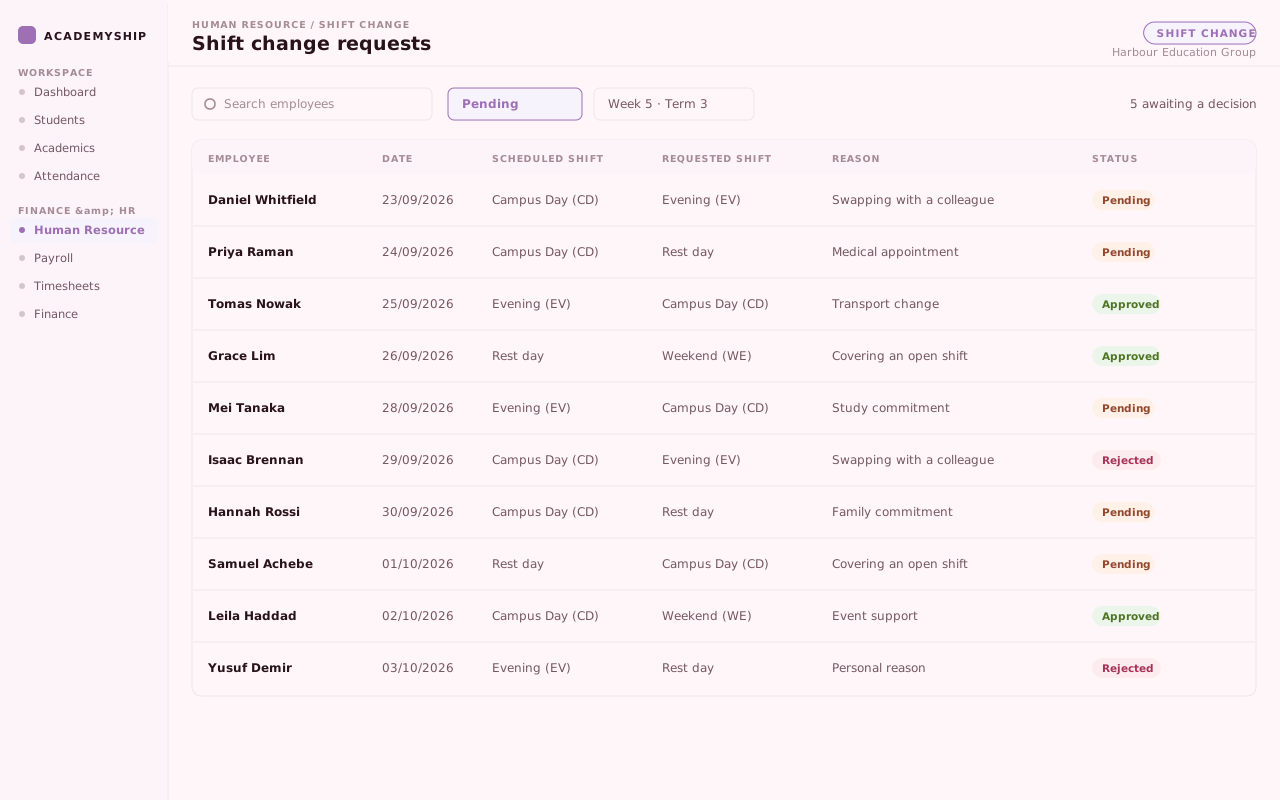
Documents and key dates surface too late
Work rights, certificates and contract dates sit in a folder nobody opens until something forces it.
Work rights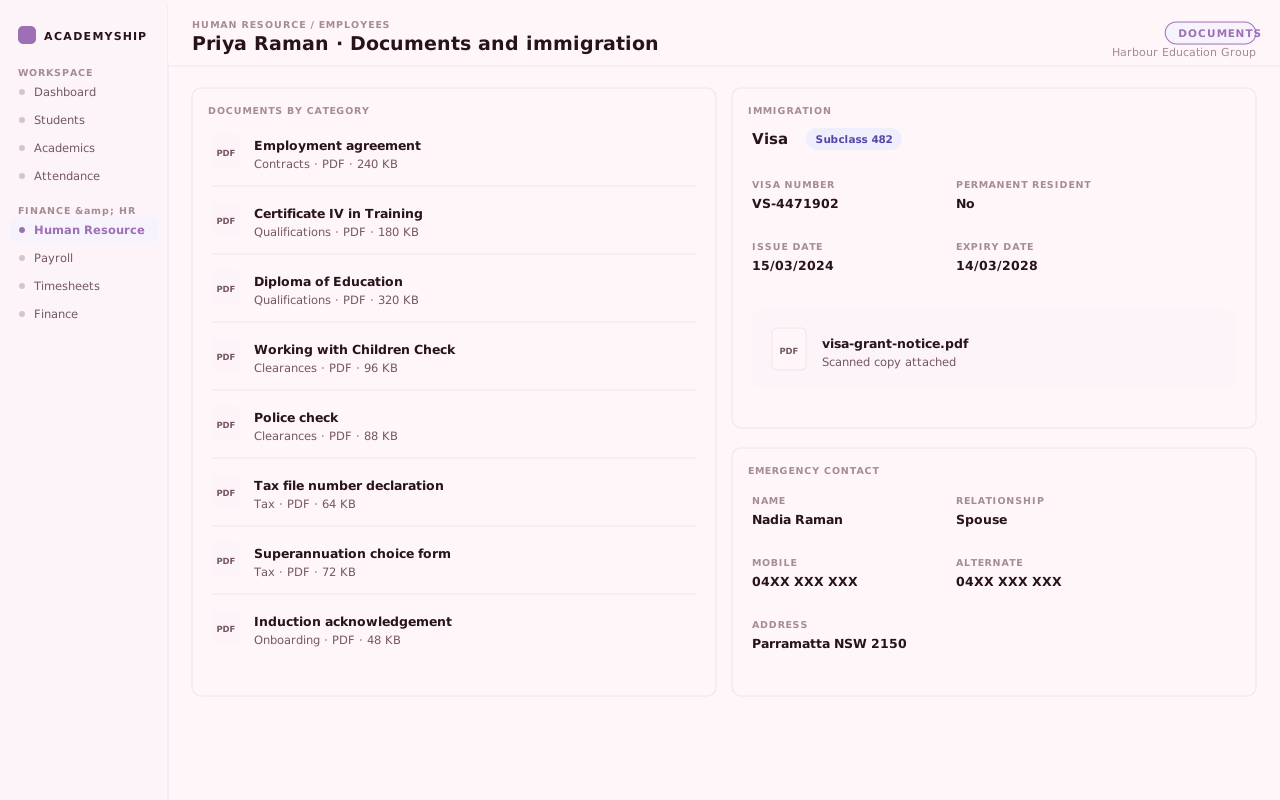
Where HR connects
One People Record. HR Workflows Stay Connected.
Keep the people record current once, then let onboarding, leave, rosters, documents and payroll work from it.
Comes into HR
- Invitations and applications
- Employees added by hand
- Bulk employee import
- Departments and designations
- Leave, holiday and shift settings
- Payroll classifications
HR holds
- Staff profiles and history
- Organisation and reporting lines
- Leave types and quotas
- Shifts, rosters and rotations
- Documents and work rights
- Increments and recognition
HR connects out to
- Attendance, for staff capture
- Timesheets, for approved hours
- Payroll, for employment detail
- Recruitment, at the handover
- Reports managers read
- Exports to send on
From invite to everyday HR
Bring People In. Keep Every Next Step Moving.
The same staff profile carries someone from the first invitation through every ordinary week after it.
-
Invite or add
Send one invitation, or a batch of up to a hundred, with the department, designation and employment type already chosen. Share a single onboarding link where that suits the role better.
Or create the person directly, or bring a group in from a spreadsheet.
-
Collect the details
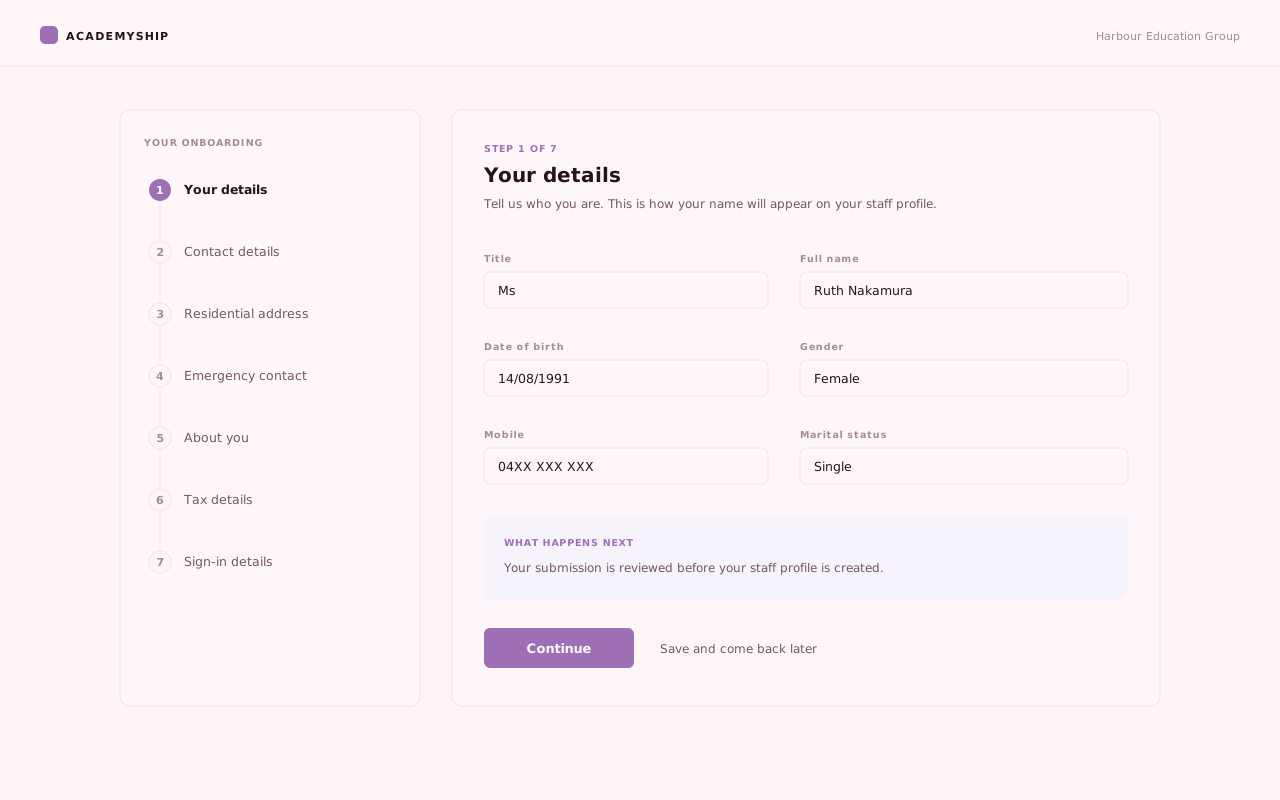
The onboarding form walks the applicant through personal details, contact, address, emergency contact, personal information, tax and sign-in details, validating each area before the next opens.
-
Review and commence
Your team checks what came back and creates or commences the employee through the route that applies. Employment terms, organisation placement and access stay with HR.
Employment type and the joining, probation, notice and contract dates are set here, and entitlements open against the types that apply.
-
Support and operate
From there the profile carries leave and balances, rosters and shift changes, holidays, documents and work rights, increments and recognition.
What HR brings together
Bring the Staff Journey Into One Connected Record.
From onboarding and work rights to leave, rosters and recognition.
Academyship
01
Onboard and organise
Invite one employee or many, import existing records and place everyone in the right department, designation and reporting line. Each staff record is then useful from day one.
- Invitations, one or in a batch
- Direct entry or bulk import
- Departments and designations
- Reporting lines and categories
Academyship
02
Profiles and work rights
Keep the dates, documents and obligations of employment in one profile. Contracts, probation, work rights, emergency contacts, bank, tax, super and classification stay together.
- Probation, notice and contract dates
- Documents and emergency contacts
- Visas, passports and work rights
- Bank, tax, super and classification
Academyship
03
Leave and holidays
Define leave types and quotas, then handle half-day or multi-day requests with evidence attached. Holidays can be scoped to the people they affect, so balances are easy to explain.
- Leave types with their own quotas
- Half-day and multi-day requests
- Evidence attached to a request
- Holidays scoped to who they affect
Academyship
04
Shifts and attendance
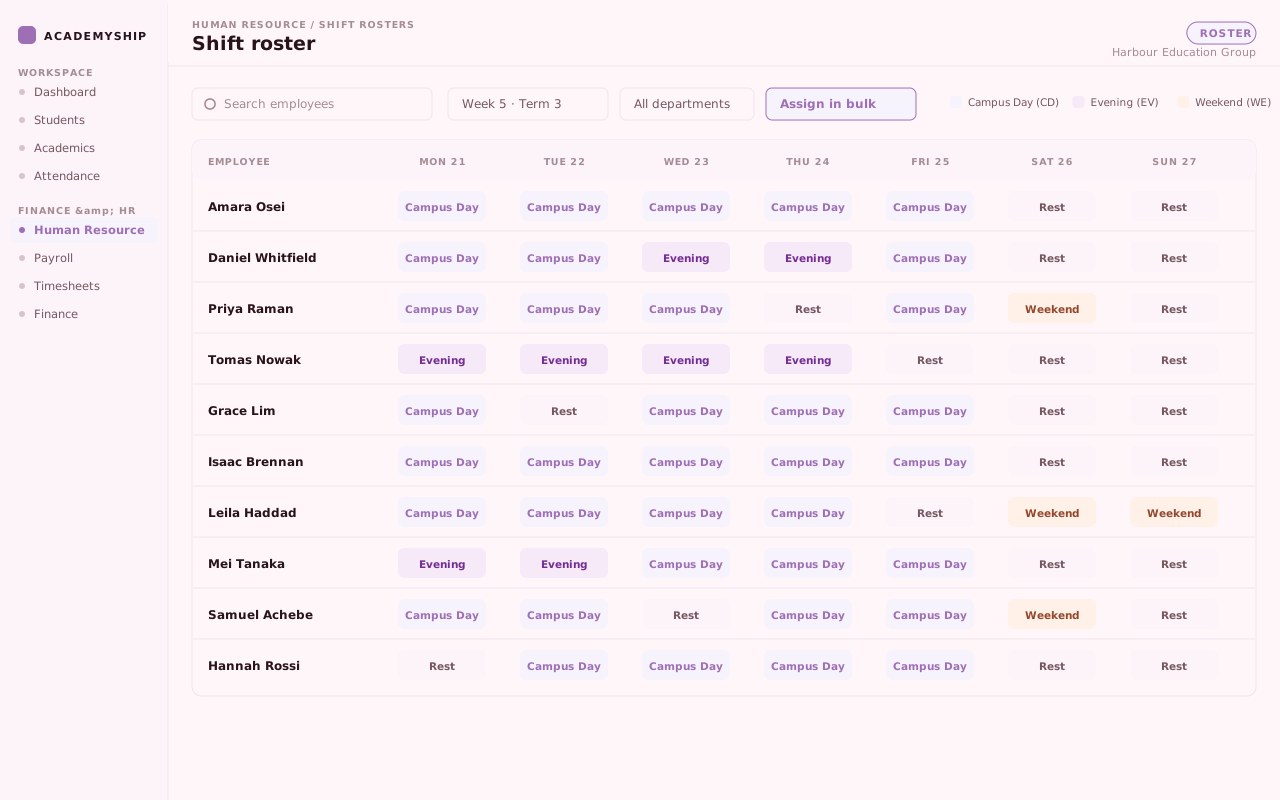
Create named shifts, build rosters by employee or day and apply rotation patterns or bulk changes. Planned work, clock-ins, attendance summaries and exports remain connected.
- Named shifts with their own rules
- Rosters by member or by day
- Rotation sequences and bulk changes
- Staff clock-ins, summaries and exports
Academyship
05
Career and recognition
Record promotions, increments, projects and contributions as part of the employee’s history. Recognition, tasks, time logs and profile activity show how a person’s role has developed.
- Increments and promotions
- Appreciations on the profile
- Projects, tasks and time logs
- Profile activity history
Scroll sideways, or use the arrow, Home, End and Page keys, to reach every card.
The employee profile
See the Whole Staff Story in One Place.
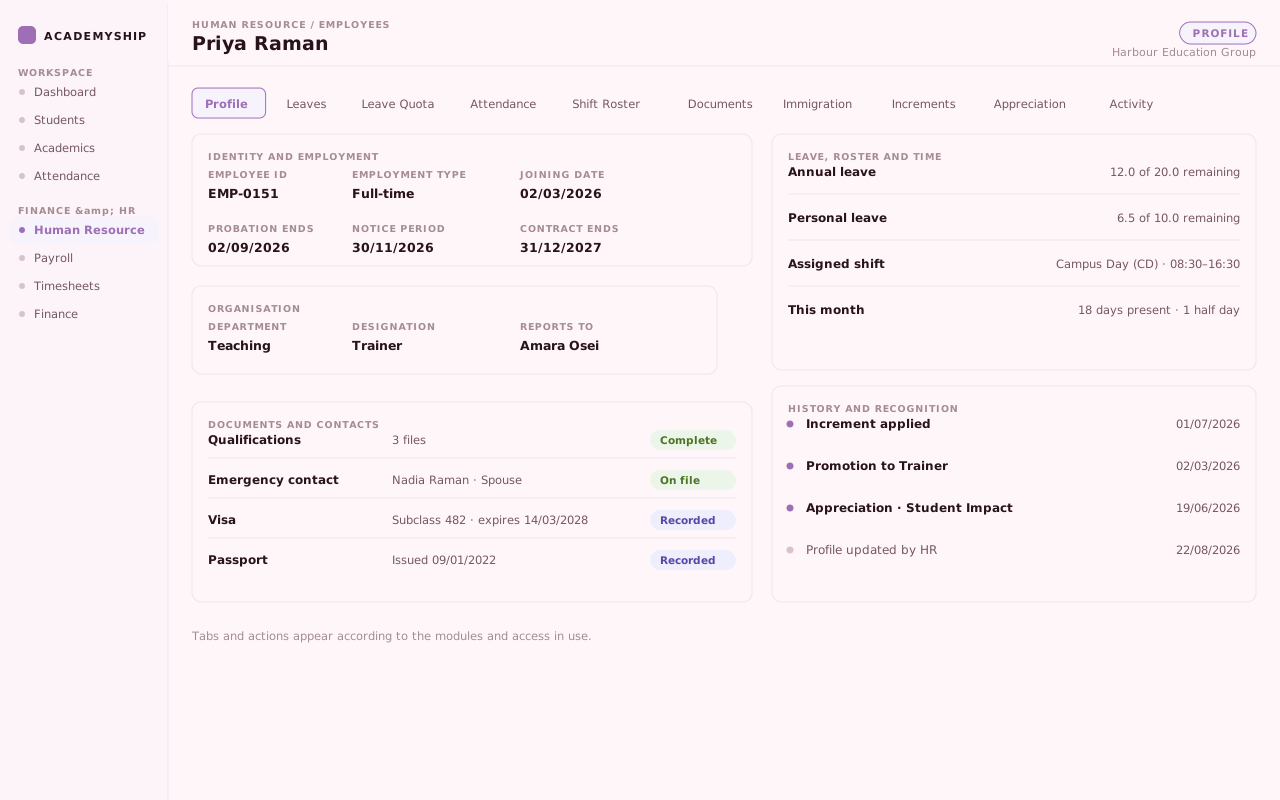
The profile is where HR work happens: who someone is, where they sit, and what is still outstanding.
1
Identity and employment
Employee ID, employment type and the joining, probation, notice and contract dates.
2
Where they sit
Department, designation and reporting line, drawn from the structure your team maintains.
3
Leave, roster and time
Entitlement balances, the assigned shift and this person’s attendance, beside the profile.
4
Documents and contacts
Documents by category, emergency contacts, and visa detail with its issue and expiry dates.
5
History and recognition
Increments, promotions, appreciations and activity. Tabs follow the modules and access in use.
Fictional institution. Every name, figure and detail shown on this page is invented for demonstration.
Onboarding
Onboard at Scale Without Chasing Paperwork
One invitation or a hundred, a shareable link, and a clear view of who has replied.
A new term brings a group of starters at once. Invite them individually or as a batch, share one onboarding link, and watch each invitation move through its own states. Chase the quiet ones, extend an expiry, or reissue.
Adding people by hand or importing a group stays available where that suits better.
- Individual and batch invitations
- A shareable onboarding link
- Reminders, expiry, revoke and reissue
Capability example
Workday
Plan the Workday, Approve Changes and Keep Time Connected
Leave decided against a live balance, rosters planned, changes raised properly.
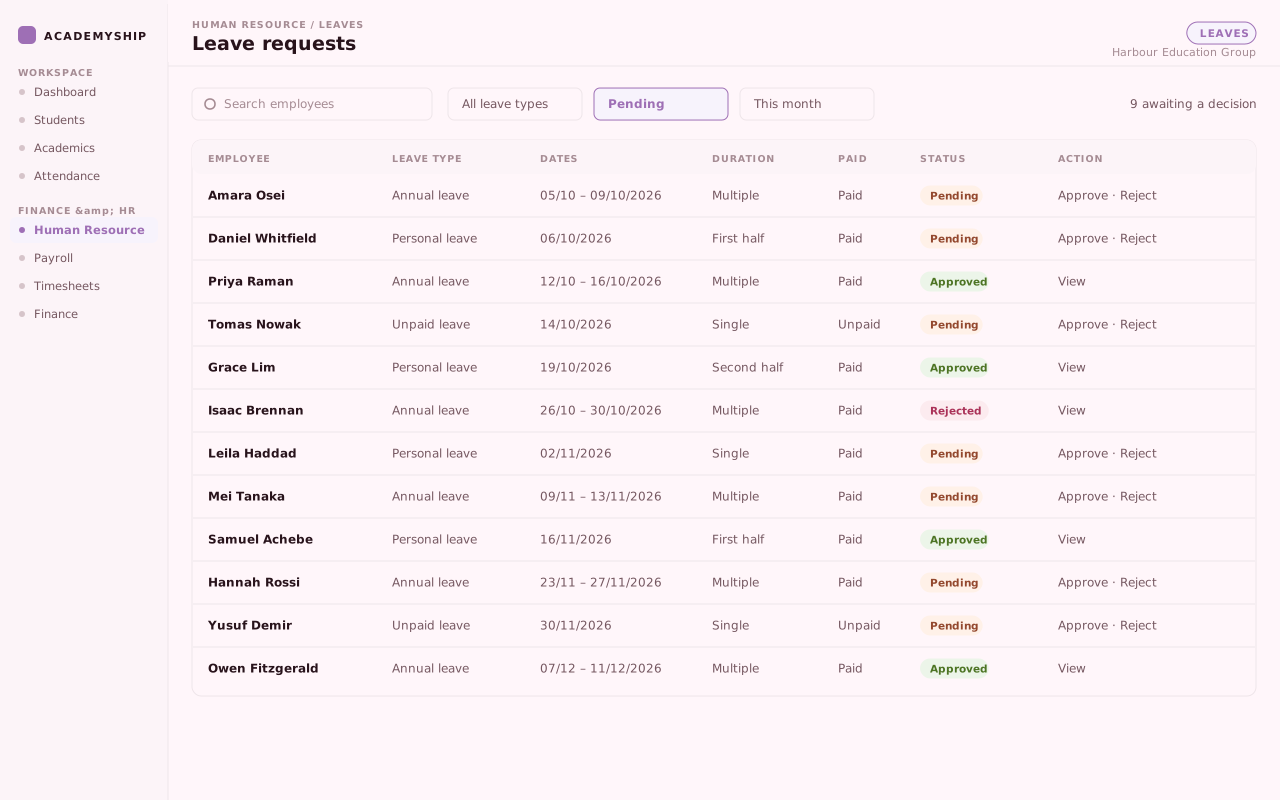
A manager approving leave sees the entitlement the request draws on before deciding, and the decision keeps the approver, the time and a reason. Rosters are built from named shifts, or driven by a rotation sequence.
Staff attendance and approved hours carry on into Attendance, Timesheets and Payroll.
- Leave decided against a live balance
- Rosters, bulk assignment and rotations
- Shift changes raised as real requests
Capability example
What your team can use
Turn HR Records Into Outputs Teams Can Use.
Use current HR data for leave decisions, reporting and clean handoffs.
Leave
- Leave requests and history
- Leave report by employee — Report
- Leave quota report — Report and export
- Leave export — Excel
- Leave quota report export — Excel
- Approval and rejection reasons
Workday
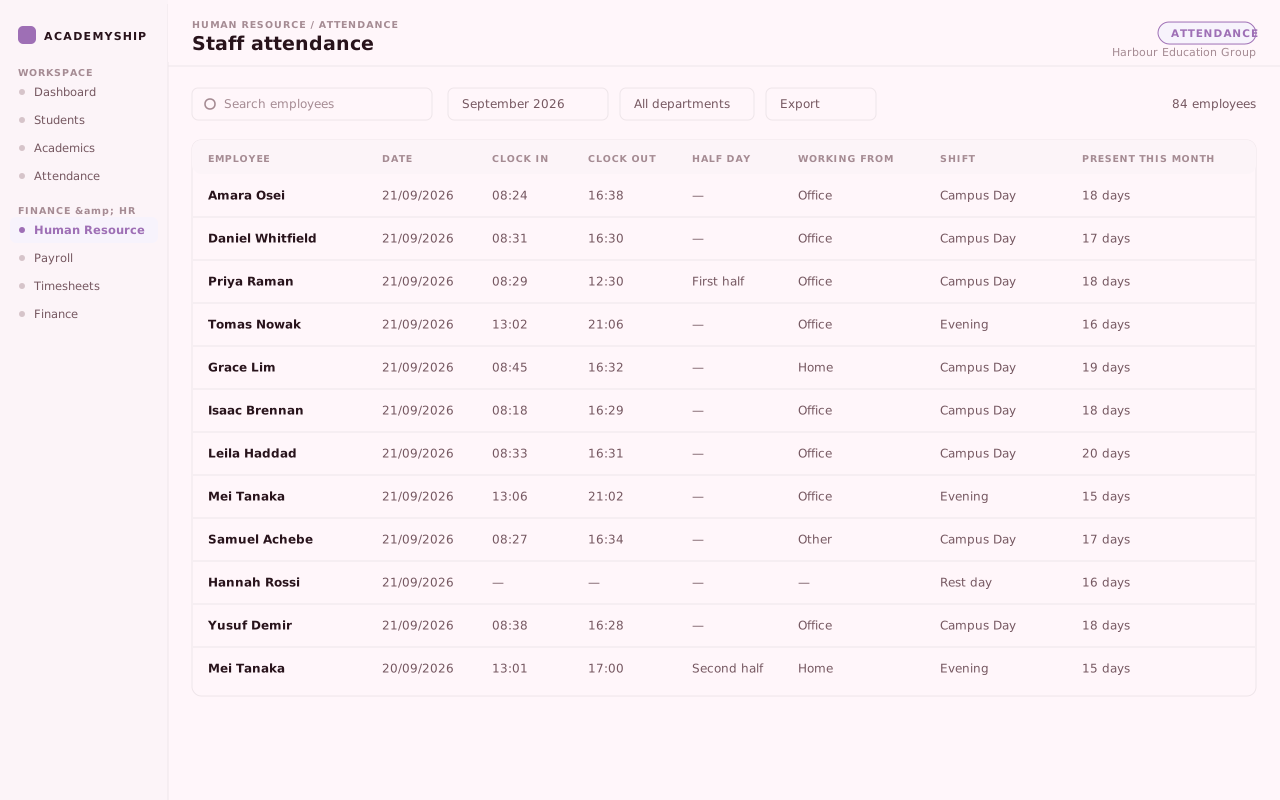
- Attendance summaries — Report
- Attendance by member — Report and export
- Attendance export — Excel
- Shift schedule export — Excel
People
- Staff profile and history
- Documents and work rights
- Increments and promotions
- Appreciation history
- Departments and designations
Reports and exports draw from the same HR records shown on screen, reducing spreadsheet reconciliation before information is shared.
Set the rules once
Configure HR Around How Your Team Works.
The rules live in settings, not in whoever happens to pick up the request.
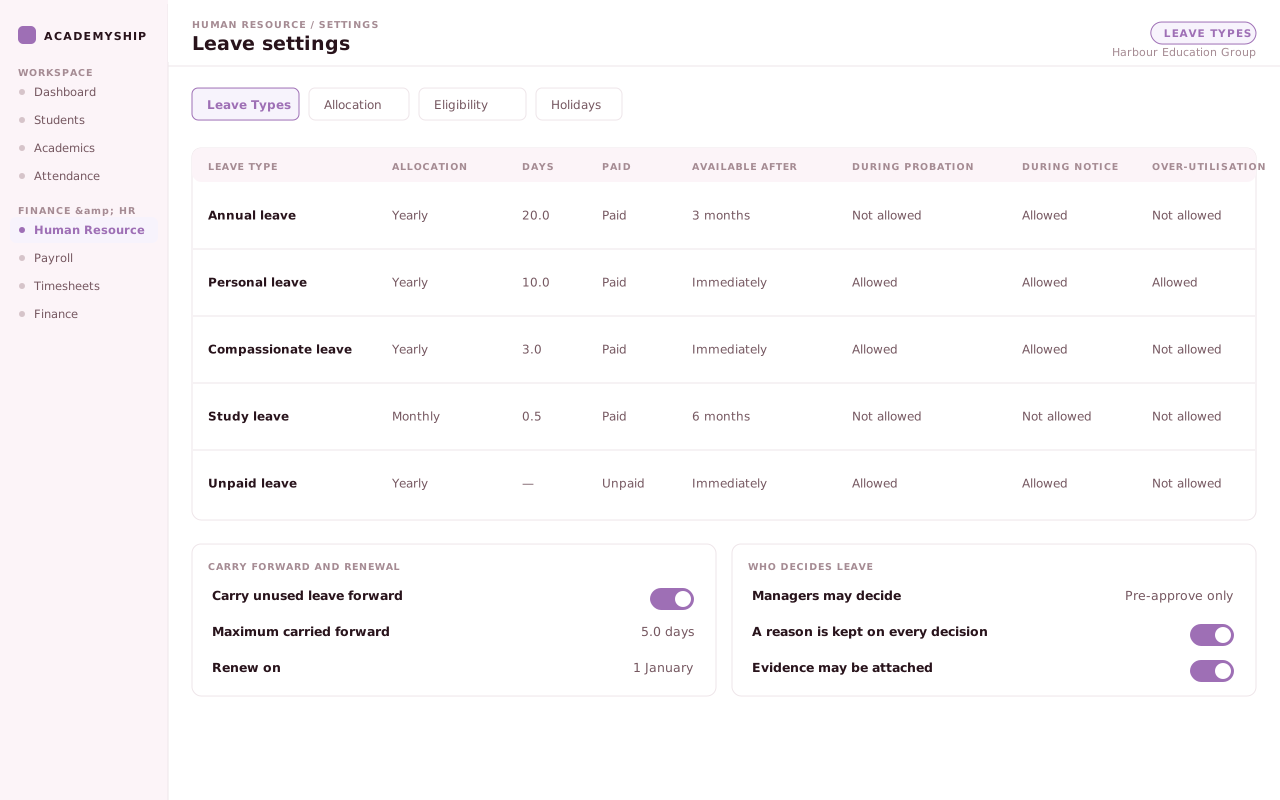
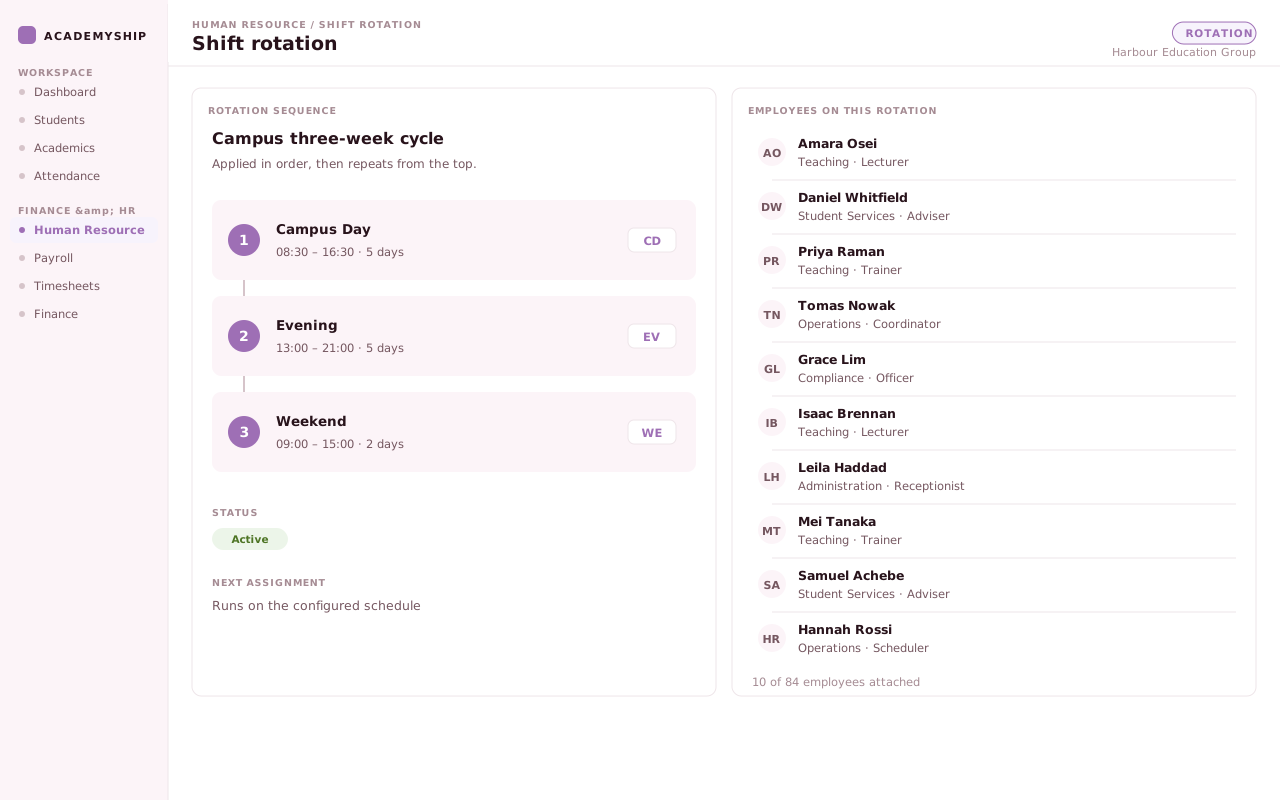
Institution settings give each request a consistent reference point for the leave, holiday and shift rules your team has configured.
The right access for every role
Control Who Can View, Decide and Change.
HR holds highly sensitive staff information. Role-based module and action permissions help keep profile, leave and roster work with the responsible teams.
Responsibility group
HR administration
Sets the rules and keeps people information right.
- Add, edit and archive staff profiles
- Configure leave, shift and holiday rules
- Maintain departments and designations
What this group also does
Import a group, and act on invitations.
Responsibility group
Managers and coordinators
Given the actions their job needs, and no more.
- Decide leave under the rule they are given
- Work with rosters and shift changes
- See what their access actually allows
How leave decisions differ
A manager may decide, pre-approve, or not decide at all.
Responsibility group
Employees
Their own information, and their own requests.
- Apply for leave against their balance
- Attach evidence to a request
- See their roster and their own profile
Where the boundary sits
Access is granted by module, and can be set per employee.

A manager decides leave
Leave approval is not a single switch. A manager can be allowed to decide, allowed only to pre-approve so HR still confirms, or not allowed at all.
The decision stores the approver, the time and a reason either way.
A coordinator works the roster
Give coordinators the roster and shift-change permissions their work requires, while keeping unrelated HR actions outside that role.
Permissions are configured by module and action in the current access model.
An employee applies for leave
Staff apply against the balance they hold, choose a half day or a run of dates, and attach evidence where the policy expects it.
Over-utilisation is flagged on the request rather than found at renewal.
1 of 3
Beyond the staff list
Keep the Details Behind Staff Decisions Clear.
See the records behind employment, structure, work rights, leave and recognition.
-
Staff profile and lifecycle
Employment type and the joining, probation, notice and contract dates on one profile, with status and archiving for people who have moved on.
-
Organisation structure
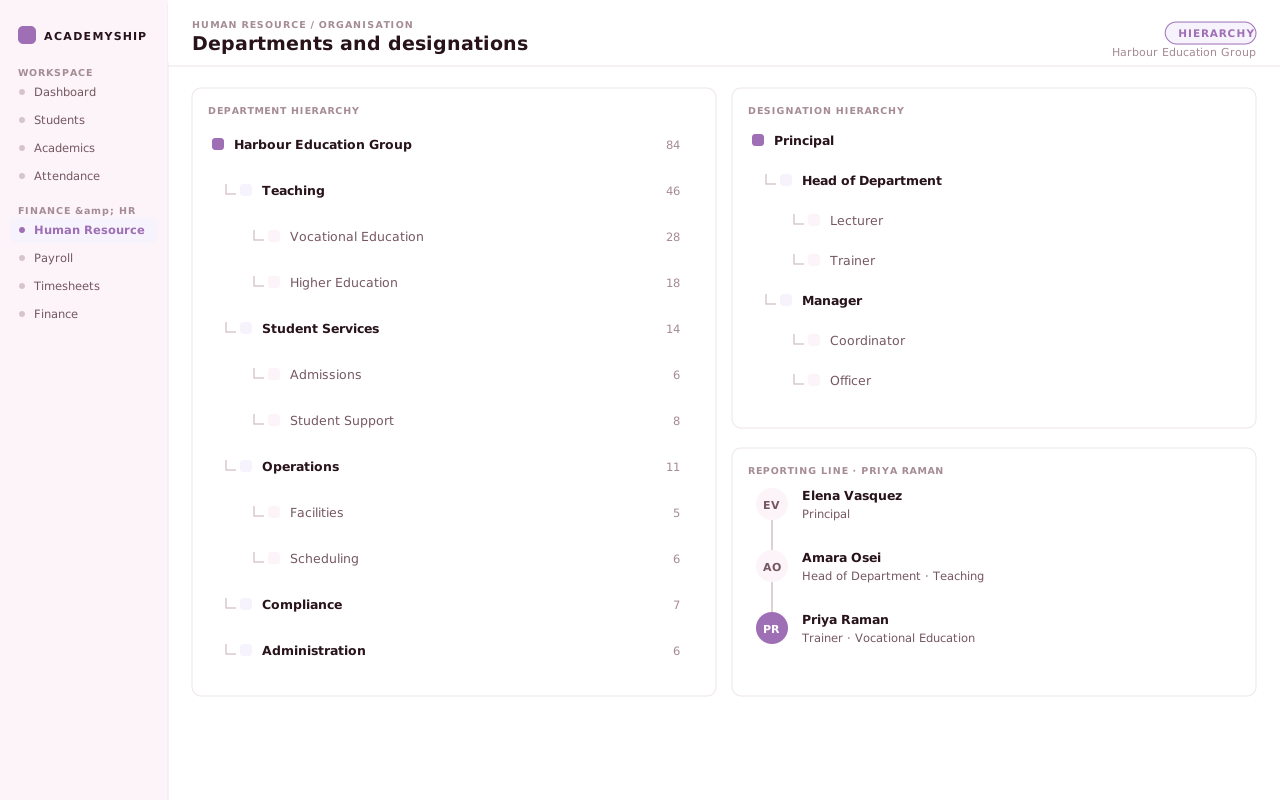
Departments and designations each keep their own hierarchy, so reporting lines match how your institution is arranged.
-
Documents and work rights
Documents held by category, emergency contacts, and visa or passport detail with issue and expiry dates and a scanned copy.
-
Leave, quotas and holidays
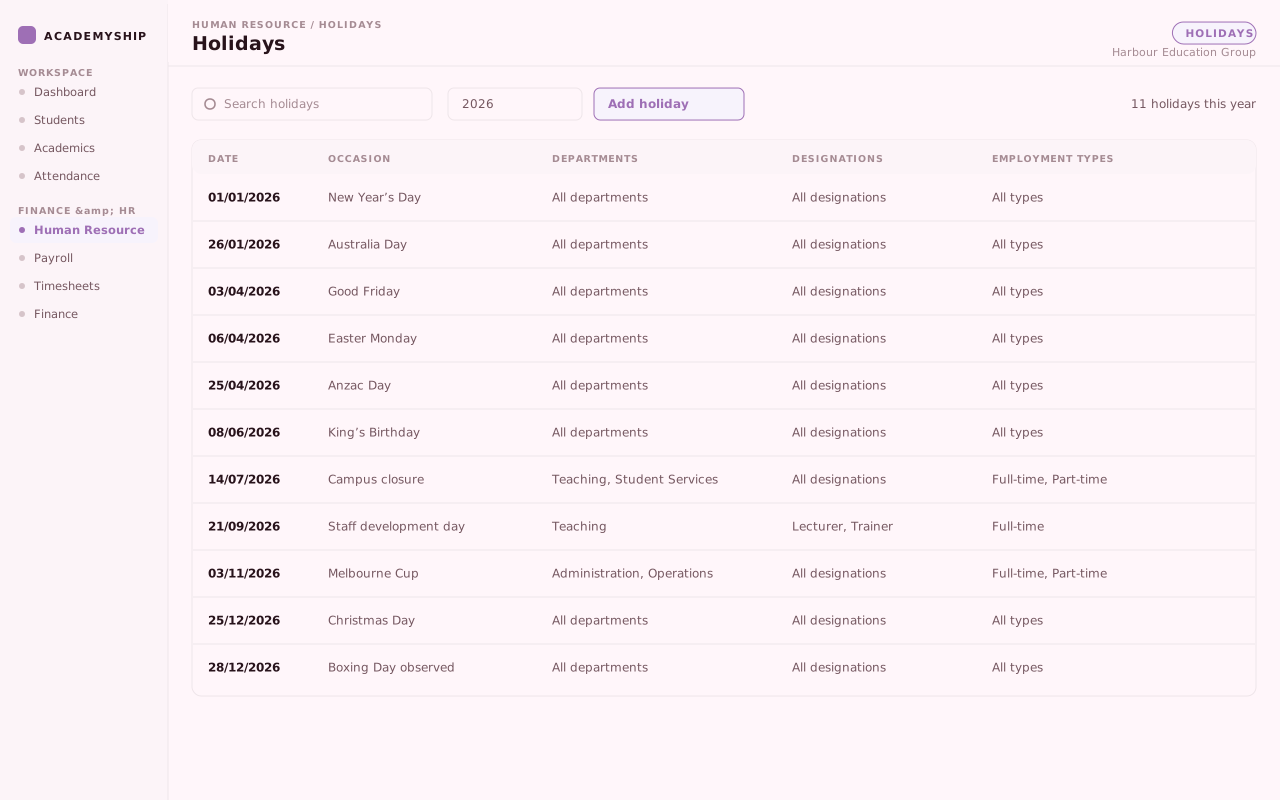
Quotas per leave type with carry-forward and renewal, recalculation for one person or everyone, and holidays scoped to the staff they cover.
-
Work context on the profile
Projects, tasks, tickets and time logs sit with the employee, so a manager sees the work beside the person.
-
Classification and recognition
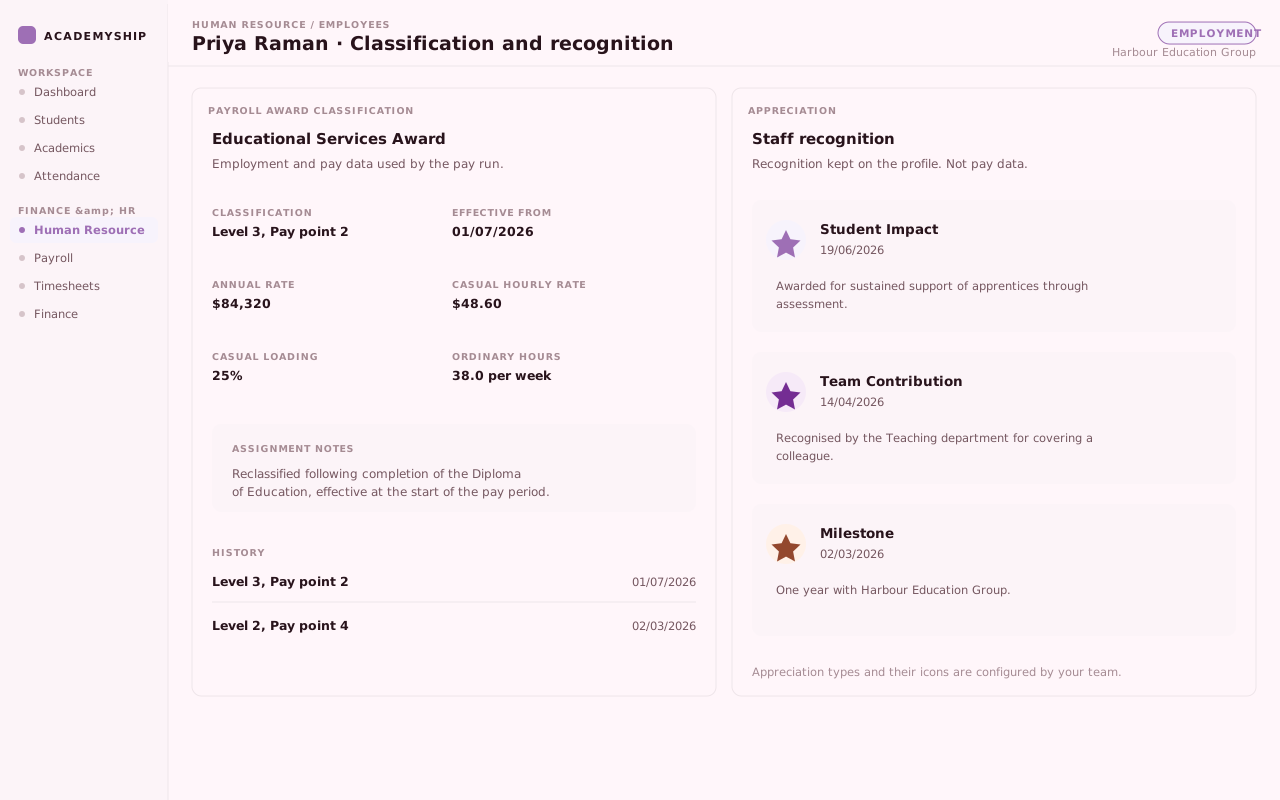
Keep award classification and its effective date with employment data, while appreciations record recognition on the profile—clear context without mixing two different records.
Questions, answered clearly
What Teams Ask Before Bringing HR Together.
Seven direct answers for schools, RTOs and growing teams bringing people operations into one system.
How do new starters get into the system?
Three ways, and you can mix them. Invite one person or a batch of up to a hundred, share a single onboarding link, or add someone directly. A spreadsheet of starters can be imported.
What do employees fill in themselves, and what stays with HR?
The form collects personal details, contact, address, emergency contact, personal information, tax and sign-in details. Employment terms, organisation placement and access are set by your team during review.
How do leave balances and approvals actually work?
Each leave type carries its own quota, allocated monthly or yearly, with rules for when it becomes available and how probation and notice are treated. Staff apply for a half day or a run of dates and can attach evidence.
How are rosters and shift changes handled?
Shifts are named and carry their own hours and timing rules. Assign them by member or across a group at once, or set a rotation sequence when the pattern repeats. A different shift becomes a change request.
Does this replace the Attendance product?
No. HR holds staff attendance beside the profile — clock-in and clock-out, half days, where someone worked, summaries and exports. Attendance has its own product page.
How are documents and work rights kept?
Documents sit on the profile by category, alongside emergency contacts. Visa and passport entries hold the number, issue and expiry dates, permanent status and a scanned copy.
How does HR connect with Recruitment, Timesheets and Payroll?
Recruitment hands a successful applicant into onboarding. HR keeps employment terms, organisation details and award classification, while approved hours can pass through Timesheets before Payroll uses both.
HR for education teams
Give Your Team One Place to Run HR.
Bring onboarding, staff profiles, leave, rosters and documents together, without asking administrators to enter the same detail twice.
One profile your workflows share
Access granted per module and action
Leave rules, quotas and requests together
A staff profile moves through five states
- Invited
- Submitted
- In review
- Commenced
- Active