Month, week, day or list, from the same events.
Office & Ops · Events & Calendar
Plan It Once. Keep Everyone in Sync.
Events, people, rooms, bookings and reminders in one calendar that checks for clashes before you save.
People, room and booking clashes caught before save
See the room and the person that clash, and a clear slot.
Add a class, department or selected people, with permissions underneath.
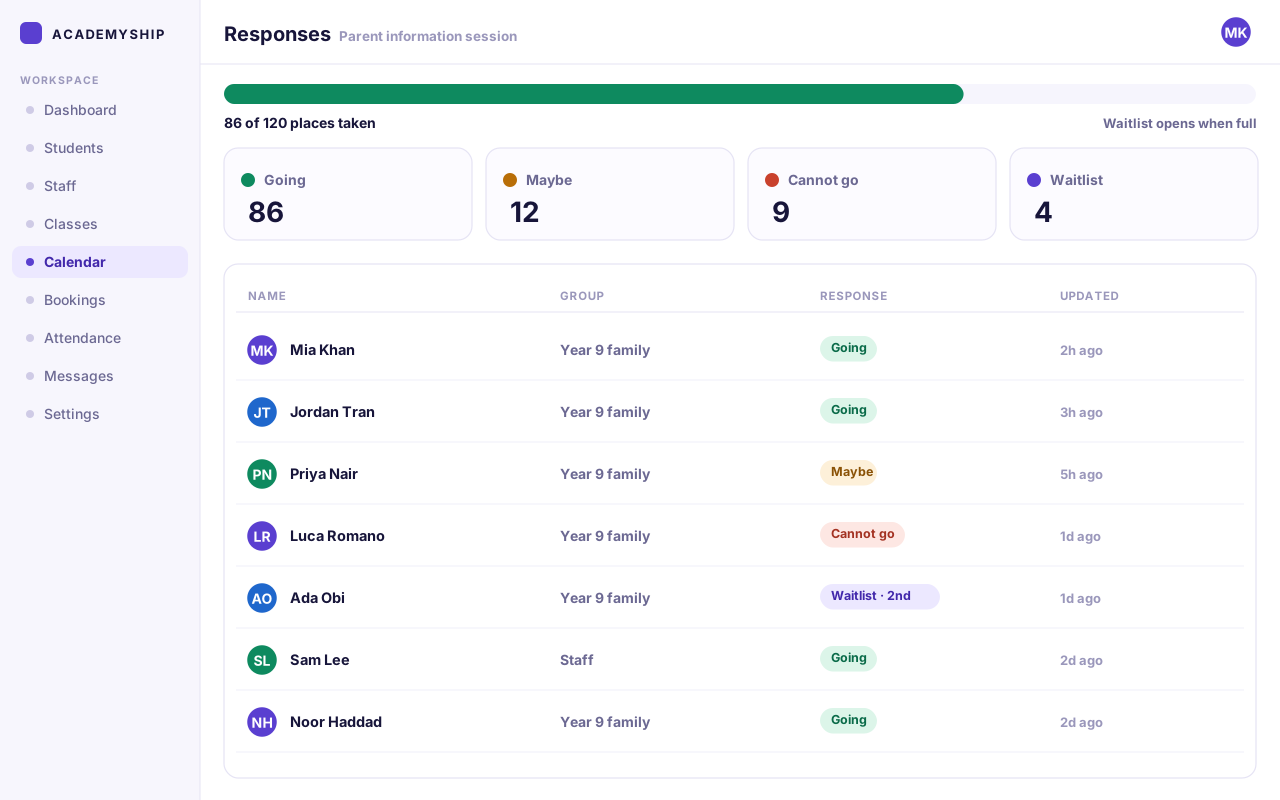
Follow going, maybe and the waitlist against capacity.
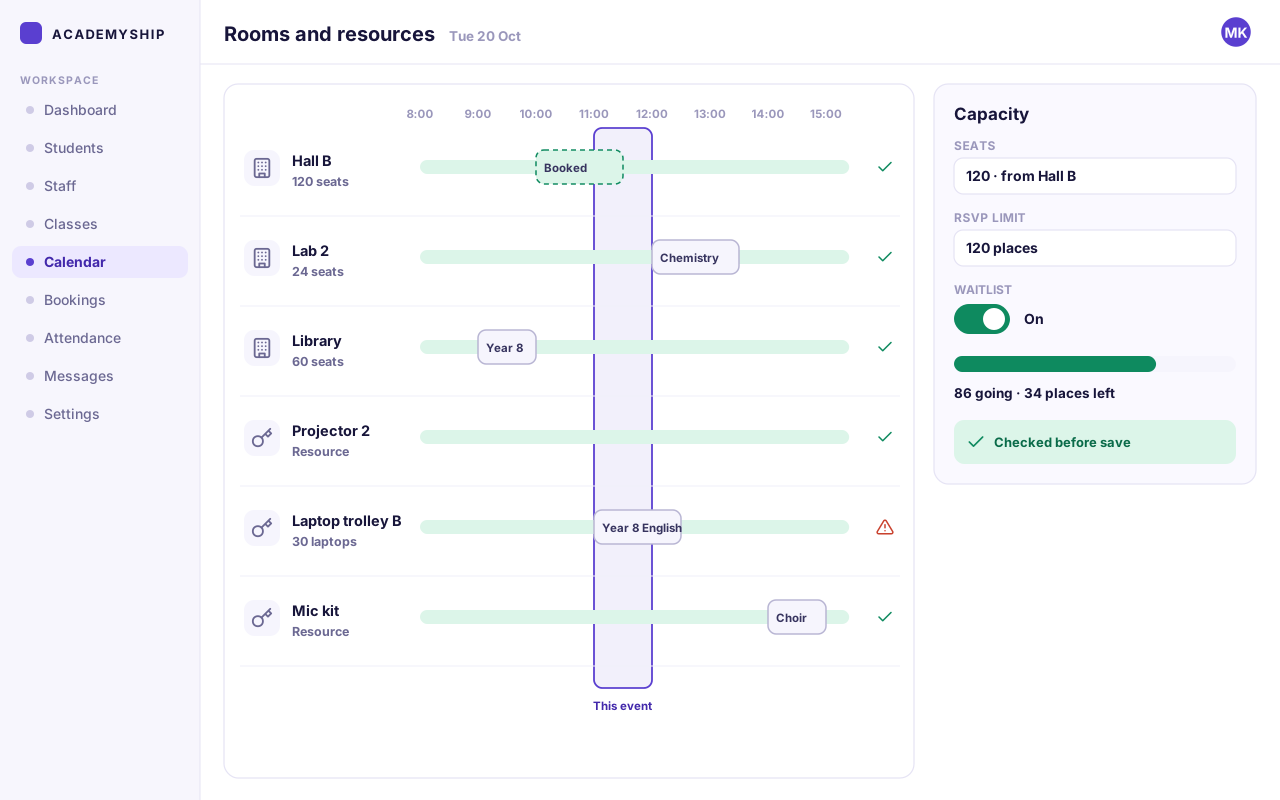
Hold the space and the equipment with the time.
Reminders and event activity stay tied to the schedule.
Why calendars get messy
Calendars Get Messy When the Context Lives Somewhere Else.
A time slot looks free. The room is not. Someone is already booked. A reservation sits in another workflow. Then the schedule changes and different people end up working from different versions.
The context that decides the schedule lives outside the calendar, so nobody can be sure which version of the week is the real one.
- Events separated from people and rooms
- Bookings hidden in another workflow
- Changes easy to miss
- No single current schedule everyone can trust
Context in four places
The event sits in one calendar, the room in a spreadsheet and the attendee list in an email thread.
Scattered context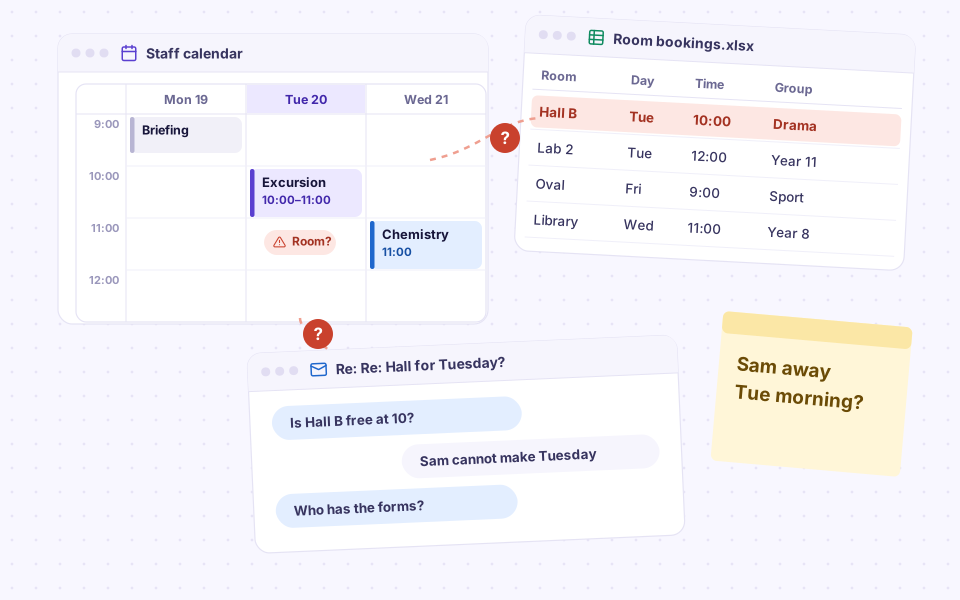
The room says yes. Twice.
Two groups book Hall B for the same hour, and nobody finds out until both arrive.
Room clash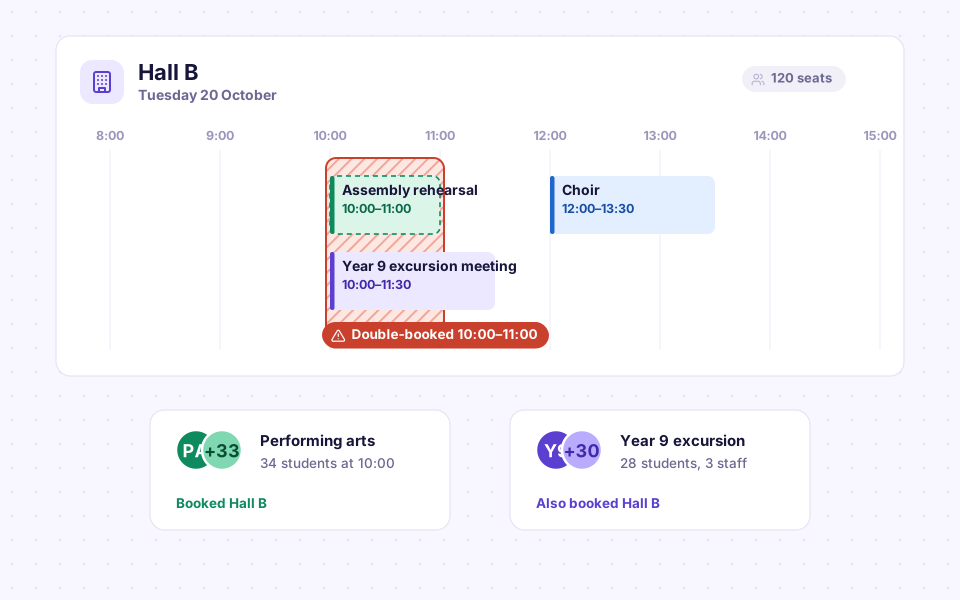
A booking the calendar cannot see
The slot looks open because the booking lives on another list, so the clash surfaces on the day.
Hidden booking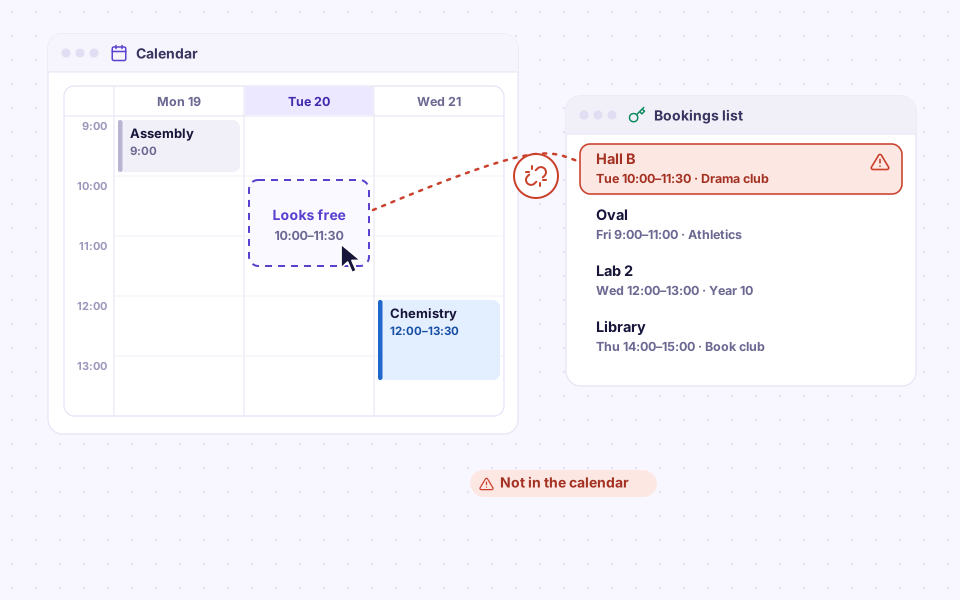
The change that did not travel
The time moves, but the reminder, the attachment and the RSVP list still say the old thing.
Stale update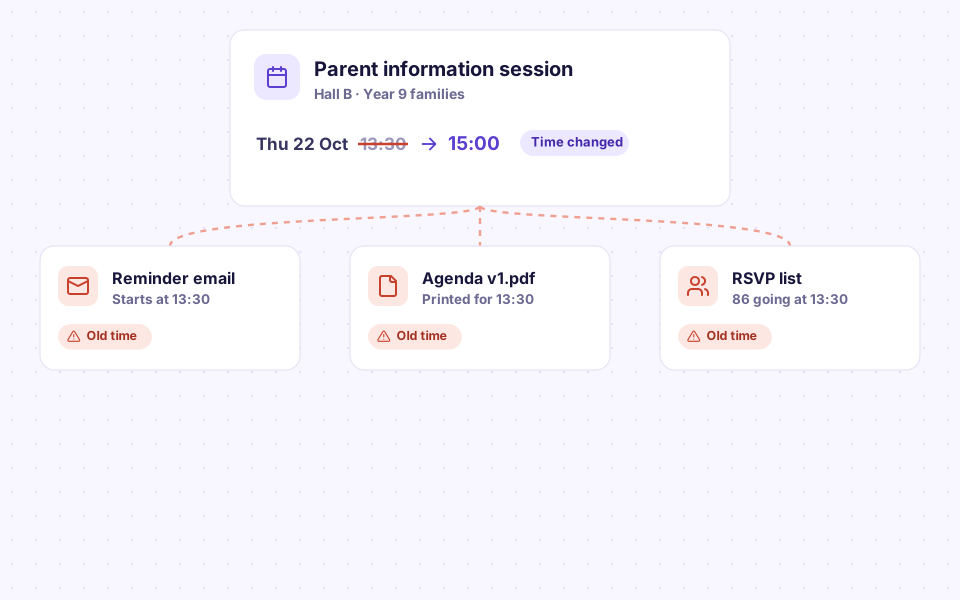
Meet Academyship Events & Calendar
One Calendar for the Schedule Around Your Institution.
Academyship Events & Calendar is the scheduling workspace built into Academyship. Plan one-off or recurring events, bring the right people and groups into the schedule, connect rooms, resources and booking context, manage responses and reminders, and keep the latest version visible from one place.
Plan with context
- People and availability
- Classes and departments
- Booking entries
- Rooms and resources
- Categories and templates
Academyship Events & Calendar
- Time and recurrence
- Audience and access
- Conflict checking
- RSVP and capacity
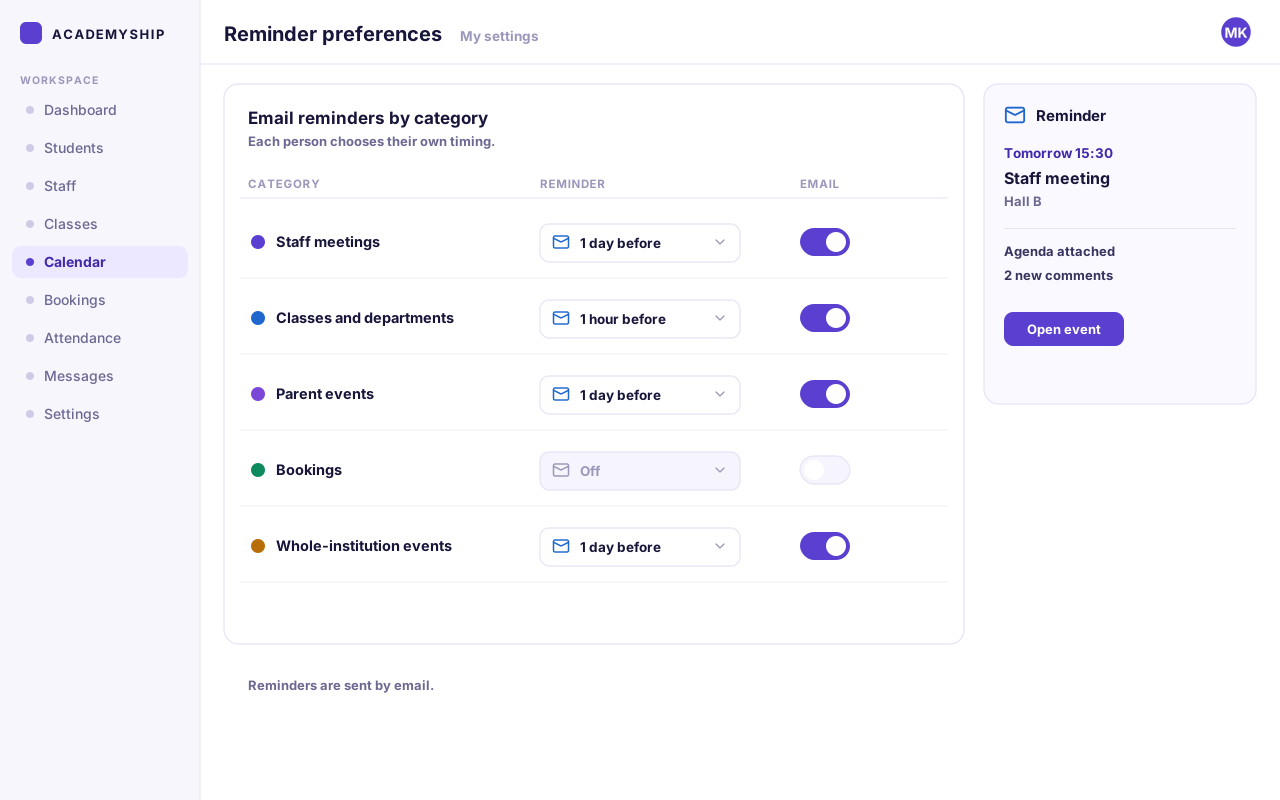
- Reminders
Keep everyone aligned
- Current schedule
- RSVP status
- Private files and comments
- Activity and history
- iCal export and subscription
How it works
Create. Check. Set It. Keep Moving.
Four steps from an empty slot to an event people can rely on, without leaving the calendar.
-
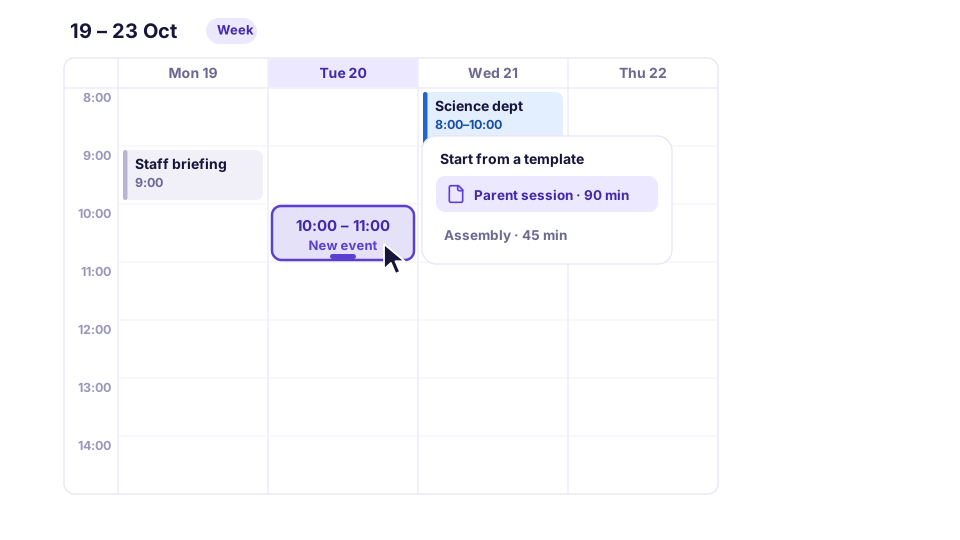
Pick the time
Click an open slot, drag across a range, or quick-create from month, week or day. Start from a template when the event happens often.
The time you pick is a starting point: nothing is saved until the checks pass.
-
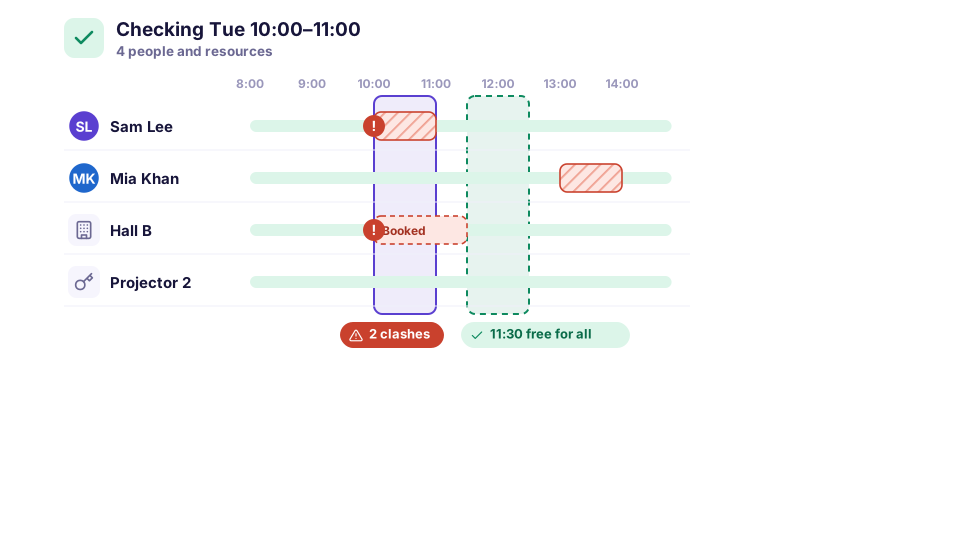
Check what is free
Before you save, the calendar checks the people you added, the room, the resources and any booking already holding the slot.
A clash names what collides and when, so you can choose another time or resource. Where policy permits an override, it has to be deliberate.
-
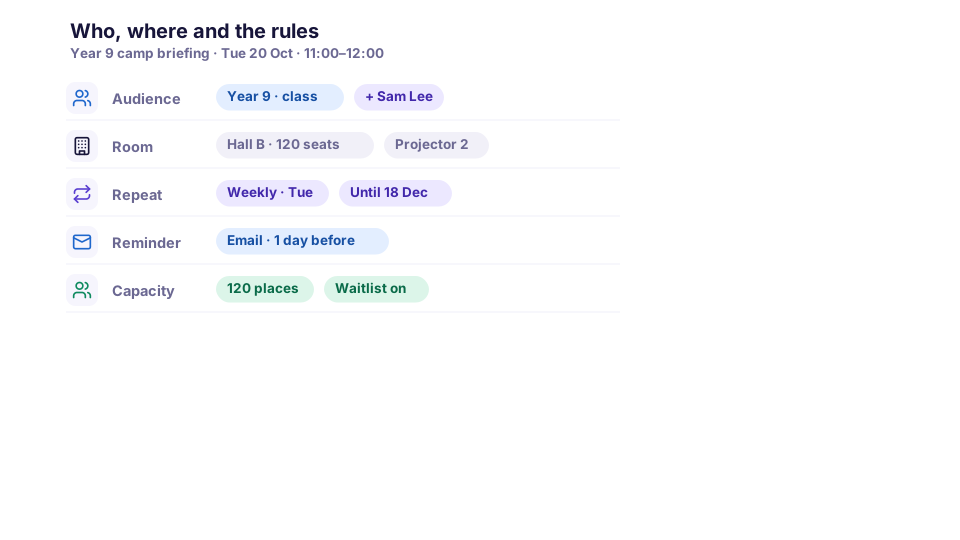
Add who, where and the rules
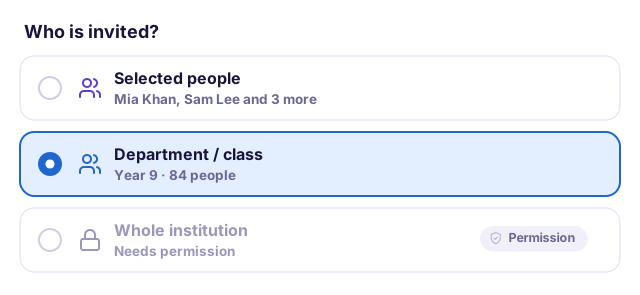
Choose people, a class, a department or, with permission, the whole institution. Add the room and equipment, a repeat rule, reminders and a capacity.
Every choice sits in one form, so nothing is set somewhere else.
-
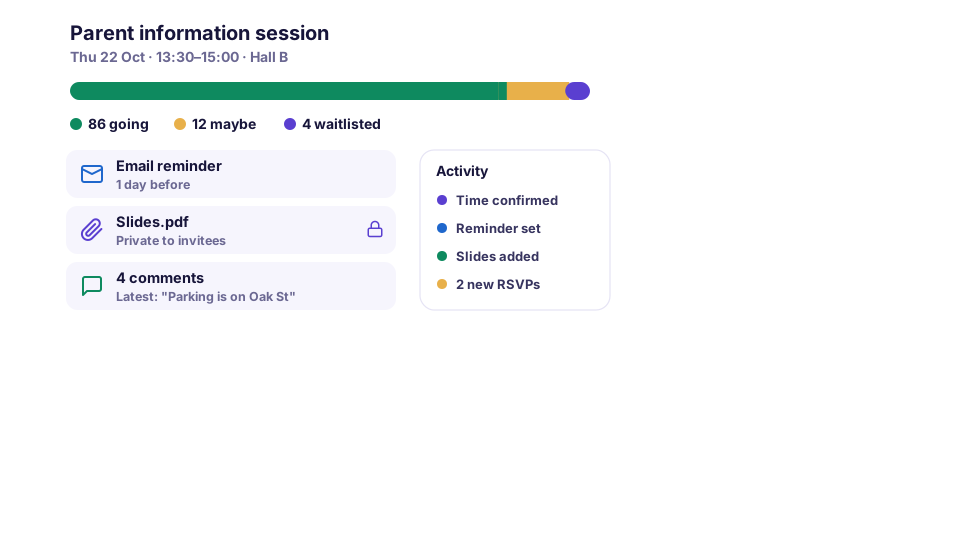
Save it and keep it current
Once saved, the event is available to the audience allowed to see it. People can respond where RSVP applies, while reminders, comments, files and activity stay with the event.
Move or resize it later and the updated schedule stays on the same event, with the change kept on its history.
What the calendar covers
Five Parts of the Schedule, Kept Together.
Each answers a different planning question, while the event, its people and its place stay connected.
Academyship
01
Views
Move between month, week, day and list views without dividing the schedule between different systems. Create events quickly, navigate dates and move or resize entries when plans change.
- Quick create from any view
- Today and range navigation
- A current-time line in week and day
- Drag, move and resize to reschedule
Academyship
02
Search and layers
Find an event by title, room or audience, then show only the schedule layers you need. Clear labels and persistent filters keep busy calendars readable without losing context.
- Search by title, room or audience
- Layers for events, bookings, rooms and classes
- Colours backed by icons and labels
- Filters that keep your place
Academyship
03
Bookings
See connected room and resource bookings beside calendar events without duplicating them. Each entry links to its source, is clash-checked and stays editable where it was created.
- Shown as connected, read-only entries
- Linked back to the original booking
- Included in every clash check
- Changed only where they were made
Academyship
04
People & groups
Invite an individual, class, department or the whole institution from the same event workflow. Availability, capacity, RSVP and waitlist controls help the intended audience fit the event.
- Availability checked before you save
- Class and department audiences
- Institution-wide with permission
- RSVP, capacity and waitlist
Academyship
05
Rooms and resources
Reserve the room and equipment with the event while checking capacity and availability before saving. When a clash appears, staff can identify a suitable alternative instead of guessing.
- Room capacity beside the RSVP limit
- Projectors, laptops and kits
- Availability checked before save
- A clear slot suggested on a clash
Scroll sideways, or use the arrow, Home, End and Page keys, to reach every card.
The calendar cockpit
See the Day Before It Gets Busy.
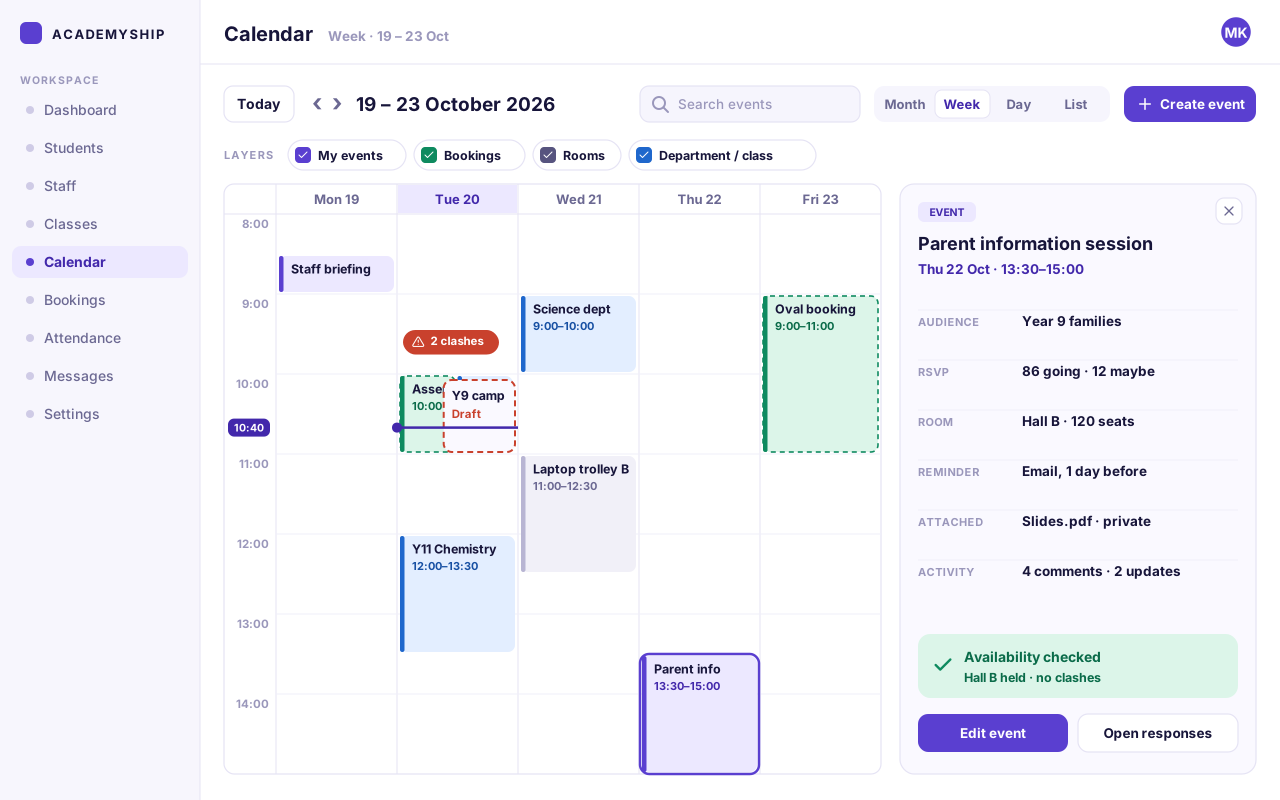
Views, search, layers, the current time and the full event context share one screen, so planning never means losing your place.
1
Move through time
Jump back to today, step week by week, and always see the range you are in.
2
Search and switch the view
Find an event by title, room or audience, then move between month, week, day and list.
3
Show only what matters
Switch the layers for your events, bookings, rooms and classes on and off.
4
Create where clashes are visible
A new event shows its conflicts on the grid, next to the current-time line, before it is saved.
5
Open the whole event
Audience, responses, room, reminder, files and activity in one drawer, with availability confirmed.
Fictional school and sample events for illustration. Nothing here is live application data.
Before it goes out
Plan It. Check It. Then Let People See It.
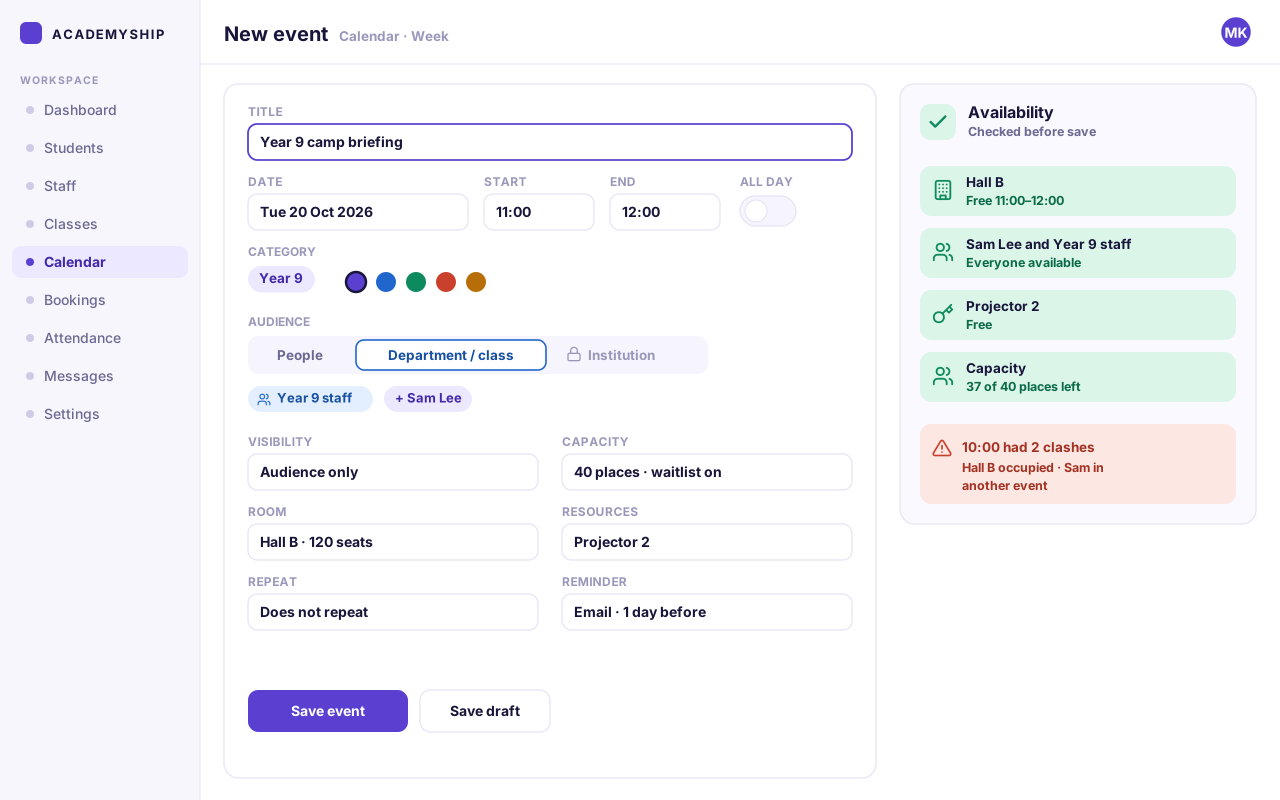
Time, audience and place are set together, and checked before the event is saved.
The organiser sets the time, the audience and the room in one form. The calendar checks people, rooms, resources and bookings, then makes the event visible to exactly the audience chosen.
Clashes are surfaced before save, with an explicit override only where policy allows it.
- Plan: when, where and who
- Validate: clashes, capacity and audience
- Publish: visible to the right people
Capability example
After it goes out
Plans Change. The Event Keeps Up.
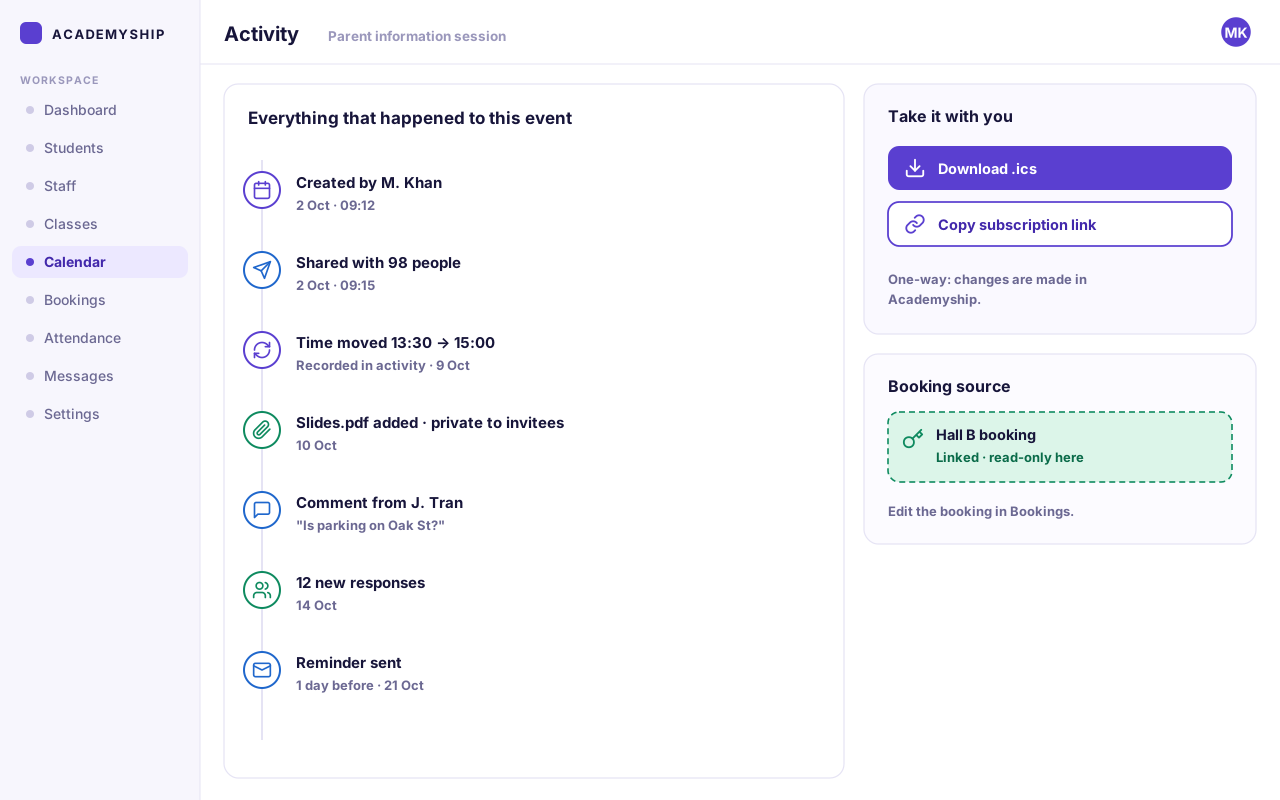
Responses, moves and files stay attached, so the latest version is the only version.
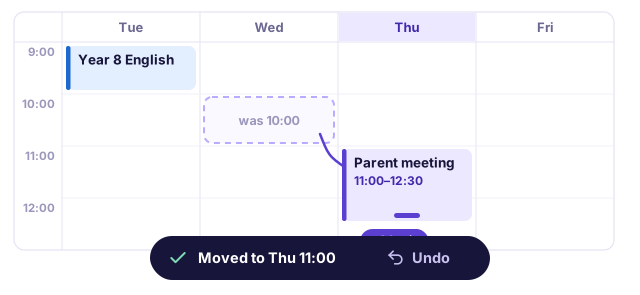
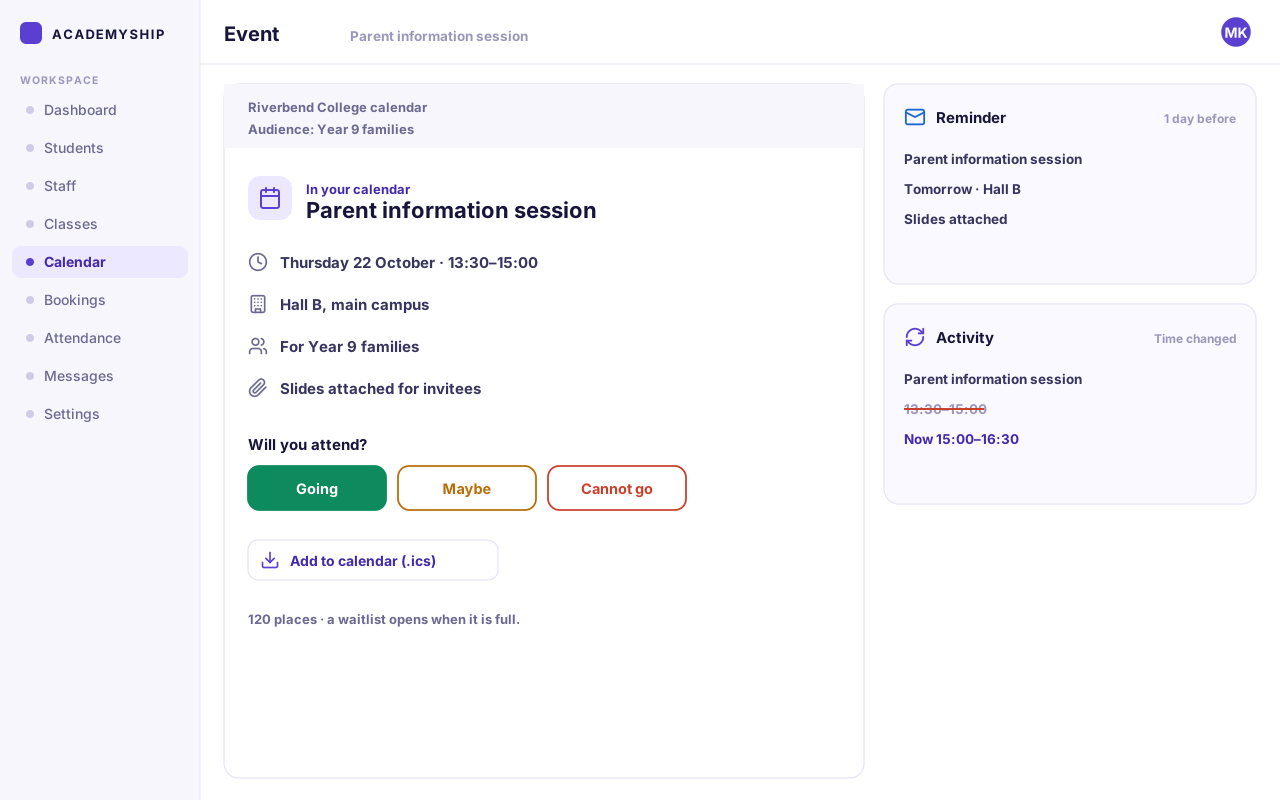
People respond where RSVP applies and the count updates against capacity. Move or resize the event and the updated schedule stays on the same event. Comments, private files and every change stay on its history.
A moved event takes its reminders with it, so nobody is reminded about the old time.
- Respond: RSVP and the waitlist
- Change: move, with the history kept
- Record: activity and history
Capability example
What the calendar produces
Every Event Produces Something People Can Act On.
Reminders go out, responses come back, and the record stays with the event.
Communicate
- Event visible to the permitted audience — In app
- Email reminder before the event — Email
- Private attachment access — In app
- Comments and reactions — In app
- Activity and change history — In app
Participate
- Going, maybe or not going — RSVP
- Response status for attendees — RSVP
- Places used against capacity — Capacity
- Waitlist when capacity is reached — Waitlist
- Add-to-calendar file — .ics
Carry forward
- Event export — .ics
- Calendar subscription — iCal
- Activity and change history — Record
- Booking source — linked / read-only
- Current schedule — Web
iCal is one-way: events are changed in Academyship and appear in a subscribed calendar app where it supports iCal.
Configurability
Set the Rules That Fit the Event.
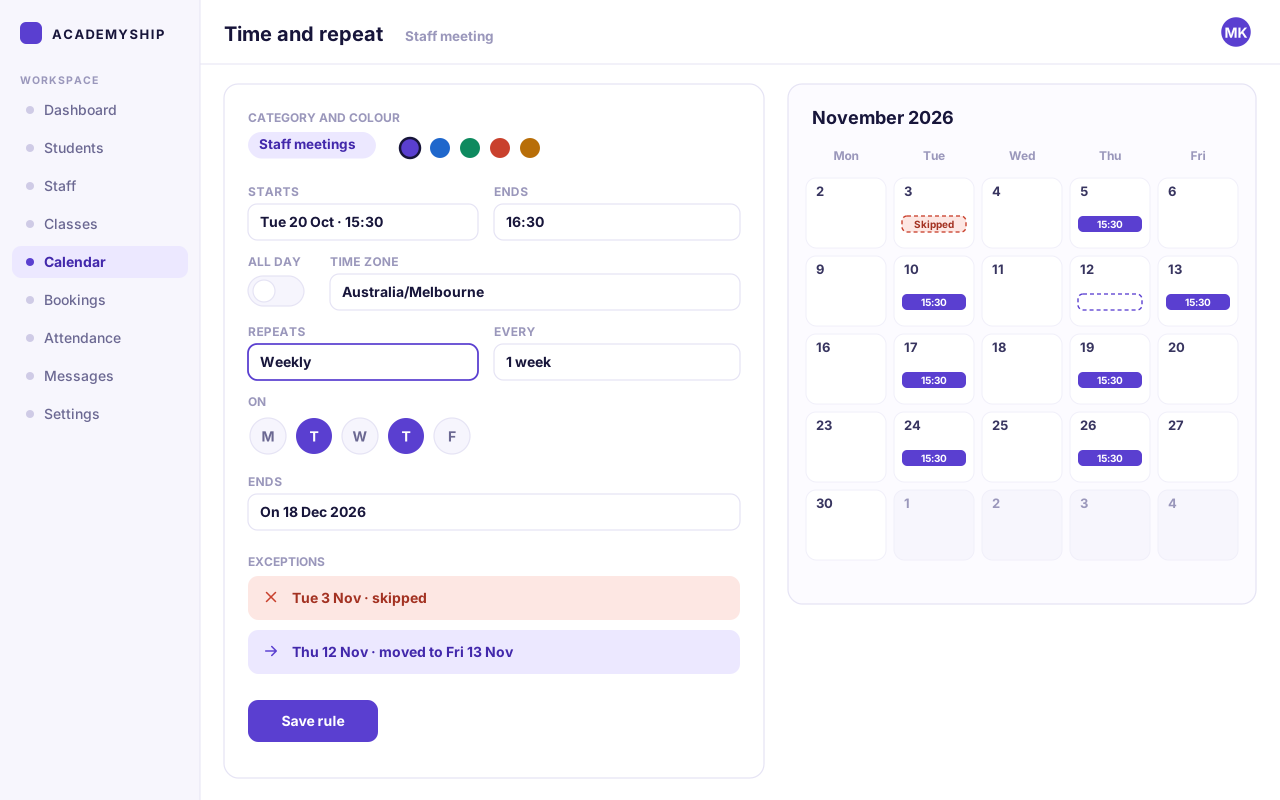
Choose the timing, audience, place, participation rules and reminders that make sense for each event.
What an organiser can change depends on their role and your setup.
Access and responsibility
The Right People Organise, Respond and See the Schedule.
What anyone can do depends on their role, your institution's policy and each event's audience.
Responsibility group
Organise and manage
Authorised staff create and run events within their role.
- Create, edit and move events
- Choose the audience, room and resources
- Manage reminders, capacity and files
What limits this
Role and policy decide which events, rooms and audiences each organiser can use.
Responsibility group
Participate and respond
Invited people see what applies to them, and reply.
- See the event details shared with them
- RSVP where applicable
- Join the waitlist when capacity is reached
- Comment and react where access permits
What invitees see
Private attachments stay with the people the event was shared with.
Responsibility group
View the right schedule
Audience and visibility decide who sees each event.
- Institution events for everyone
- Class and department events for members
- Private events for invitees only
About institution-wide events
Inviting the whole institution needs a permission most roles do not have.

A busy Tuesday
An organiser drops a briefing onto 10:00 and immediately sees that Hall B and a colleague are already taken. The clash is surfaced before save so another time or resource can be chosen—or an authorised override used where policy permits.
Where policy permits an override, it has to be deliberate.
A full parent session
Responses reach the 120-seat limit, so additional demand can move to the waitlist instead of overfilling the room.
The waitlist holds demand once capacity is reached.
A late change
The session moves to 15:00. The new time stays on the same event, future reminders follow the updated schedule and the activity history records the change.
Booking entries remain linked to their original source and read-only in the calendar.
1 of 3
Closer in
Six Controls That Keep Scheduling Fast and Hard to Double-Book.
Six controls, and the scheduling mistake each one prevents.
-
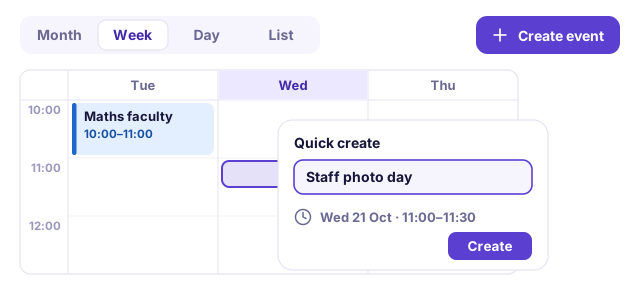
Quick create in any view
Create from a slot or a range, then see it by month, week, day or list.
-
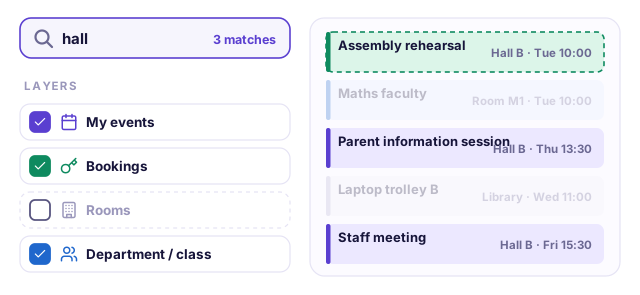
Search and layers
Search by title, room or audience, and switch layers to see only what matters now.
-
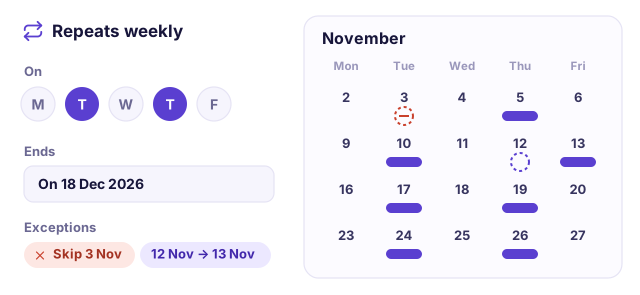
Recurrence with exceptions
Daily, weekly, monthly or custom repeats in your time zone, with single dates skipped or moved.
-
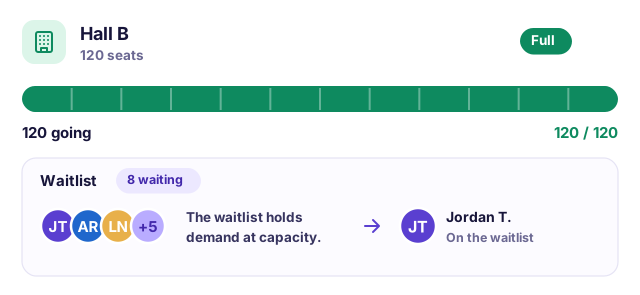
People, RSVP and capacity
Add people, count responses against places, and use a waitlist when capacity is reached.
-
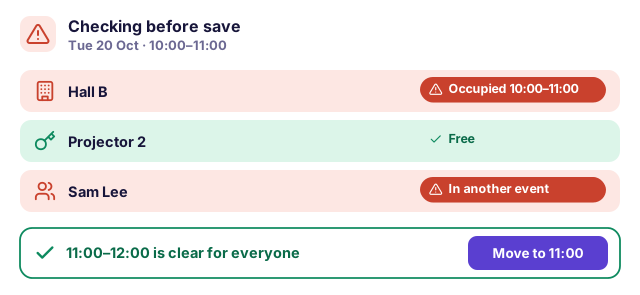
Rooms, resources and clash checks
Hold the room and equipment with the time, and see every conflict before save.
-
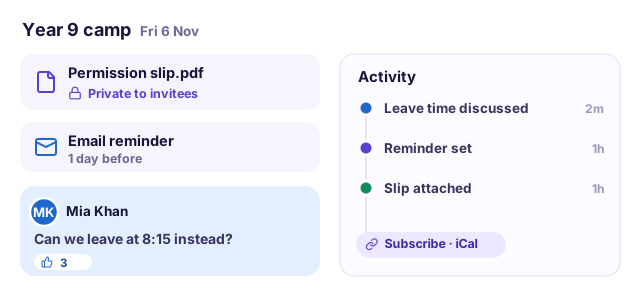
Reminders, files and iCal
Reminders, private attachments, comments and activity stay on the event, and iCal takes it with you.
Questions
Calendar Questions, Answered Fast.
The practical questions that come up before a school moves its calendar.
Can the calendar show bookings too?
Yes. Booking entries appear in the calendar alongside events and stay linked to the booking they came from, so the details are kept in one place.
Can I create recurring events?
Yes. Set a daily, weekly, monthly or custom repeat rule, then change or skip single dates as exceptions without rebuilding the series.
Can we schedule rooms or other resources?
Yes. Add rooms and resources to an event, and the calendar checks their availability and capacity before you save.
Who can see or change an event?
Audience and role permissions decide who can view an event, who can take part and who can manage it. Inviting the whole institution needs the matching permission.
How do reminders work?
Events carry email reminders, and each person can set their reminder preferences for each event category.
Can I use the calendar outside Academyship?
Yes, through iCal export and subscription, wherever your calendar app supports it. It works one way: you make changes in Academyship, and the subscribed calendar shows them.
Does the calendar work on phones and with a keyboard?
Yes. The month, week, day and list views adapt to small screens and work with touch, and every control can be reached and used from the keyboard.
Office & Ops · Events & Calendar
Make the Next Week Easier to See.
Bring events, people and resources into one Academyship calendar—and spot the clash before it becomes a problem.
Month, week, day and list
Clashes caught before save
iCal export
An event moves through six stages
- Plan
- Validate
- Publish
- Respond
- Change
- Record